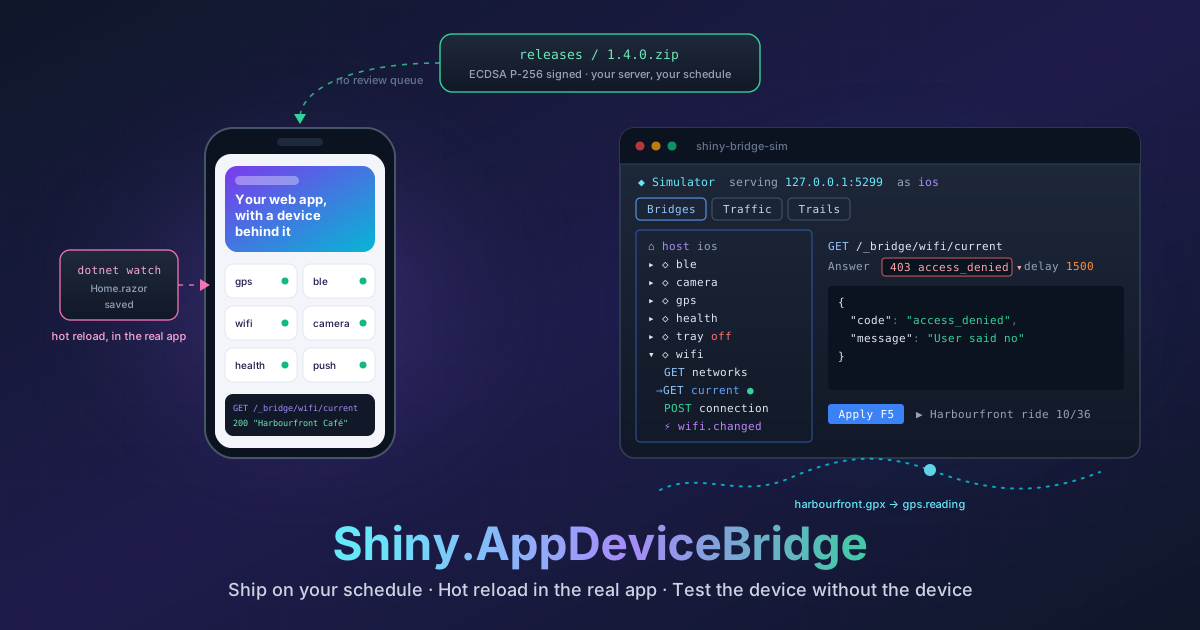
Shiny.AppDeviceBridge — Stop Waiting on App Review, and Stop Needing the Phone to Test
On this page
You find a bug. It’s one line, maybe a typo in a label or a validation rule that’s slightly too strict. You fix it in thirty seconds.
Then you wait. You archive, upload and fill in the release notes. You wait for review, and hope the reviewer has a good day. Then you wait again, because shipping the update doesn’t mean anyone installs it. A week later, half your users are still on the build with the bug.
Web developers don’t live like this. They merge, deploy, and every user has the fix on their next page load. Mobile developers have accepted the other way for so long that we rarely question it.
I wanted the web’s release cycle in a native app, without giving up the native part. So I built Shiny.AppDeviceBridge. It’s in beta today.
Where this lives
 Shiny.AppDeviceBridge.MauiThe bridge server, started with your MAUI app.Shiny.AppDeviceBridge.WebViewThe web app in a WebView: over-the-air updates, hot reload, the launch session.Shiny.AppDeviceBridge.BlazorThe page side, for Blazor WebAssembly.Shiny.AppDeviceBridge.AspNetCoreYour signed release server.Shiny.AppDeviceBridge.Simulatorshiny-bridge-sim: the device, in your terminal.
The shape of it
The idea is simple, and the details took most of the work.
Your UI and most of your logic are a web app: Blazor WebAssembly, React, Vue, anything that builds to static files. The native app is a thin shell around it: a WebView, a loopback HTTP server, a public key, and whichever device bridges you want. GPS, Bluetooth LE, Wi-Fi, notifications, push, health, the camera, photos, contacts, calendar, speech, OBD-II and more are one package and one extension method each, chained off a bridge builder.
builder
    .UseMauiApp<App>()
    .UseAppDeviceBridge(
        bridge => bridge
            .Configure(o => o.AppId = "field-app")
            .AddLocationBridges()
            .AddBluetoothLEBridge()
            .AddWifiBridge(),
        webApp =>
        {
            webApp.UseBaseline(typeof(App).Assembly, "webapp.zip", "1.0.0");   // runs offline on first launch
            webApp.UpdateServer = new Uri("https://api.example.com/webapps");
            webApp.PublicKey = "-----BEGIN PUBLIC KEY-----...";
        }
    );
The app serves the web app from the device, straight out of a zip, over
Shiny.Net.HttpServer on 127.0.0.1. It works offline, and it’s never “a website in
a wrapper” that falls over when the network does.
None of which is a new idea, and I’m not going to pretend otherwise. Cordova did this, Capacitor does it well, and .NET
has had a couple of goes at it. What I had that those didn’t is a real HTTP server that runs inside
MAUI — HTTP/1.1, HTTP/2 and HTTP/3, with routing, middleware, DI scopes, auth,
authorization policies, sessions, WebSockets, Server-Sent Events, range requests, CORS and TLS. The page isn’t talking
to a message channel or a file:// hack; it’s talking to a server on a real origin, and every device bridge is just an
endpoint on it. That’s why you can open one in the network tab or hit it with curl.
The other difference is how much of the device is actually there. Twenty-six bridges are in the beta — GPS, geofences, motion, Bluetooth LE, Wi-Fi, notifications, push, health, camera, photos, contacts, calendar, speech, jobs, HTTP transfers, network discovery, OBD-II, wearables, app links, a desktop tray, and more. I haven’t found another hybrid stack that covers that much of a phone, let alone one that hands you typed clients for all of it in two languages and lets you simulate every one of them without a device.
Updating outside the stores’ timelines
This is where it started, so let me be specific.
At launch, the app asks your server (a few lines of ASP.NET Core) whether the installed version is still acceptable. Publishing a release is copying a zip into a folder. After that:
- The release is newer. It downloads in the background and applies on the next launch. Nobody waits.
- The installed version is below your
minimumVersion. The update is required and installs before the app shows. That’s your kill switch for a bad release. - The release needs a newer native app. It’s skipped.
minimumHostVersionstops a web build that uses a new bridge from reaching an app that doesn’t have it. - The phone is offline, or your server is down. The app serves the best build it already has. It always starts.
I was careful about the security here, because “download code and run it” is exactly what an attacker would want. Every release is signed with ECDSA P-256. Before anything is served, the app verifies the signature against the public key compiled into the app, then the SHA-256 and the size. Old releases are never reinstalled, so a signed but vulnerable old build can’t be replayed.
Is this allowed? Yes. Apple’s guideline 2.5.2 and section 3.3.1(B) of the developer agreement allow HTML and JavaScript running in WebKit to be downloaded, as long as it doesn’t change the app’s primary purpose. Google Play’s rule against downloading executable code excludes JavaScript running in a WebView. The native capabilities ship in the binary and go through review like everything else. What you update on your own schedule is the part the rules already let you update: the UI, the flows, the copy, the bug fixes.
The device, without the JavaScript glue
Most hybrid frameworks get vague here. You get a message channel, and a bag of strings going in and out.
I didn’t want that. Every bridge has a [BridgeClient] interface, a source generator implements it, and the native
side serializes the same contracts. The page calls a typed method:
@inject IWifiBridge Wifi
@inject IGpsBridge Gps

var network = await Wifi.GetCurrentNetworkAsync();   // null when not on Wi-Fi

await using var readings = await Gps.OnReadingAsync(r => { position = r; return Task.CompletedTask; });
Not on Blazor? The TypeScript clients are generated from the same declarations, so a React app gets
new WifiBridge().getCurrentNetwork() with the same types.
Under the hood these are ordinary same-origin HTTP endpoints under /_bridge, plus one Server-Sent Events stream. That
means you can debug them with the network tab, curl, or the built-in traffic monitor. It also means a platform that
lacks a feature answers 501, and the page can adapt.
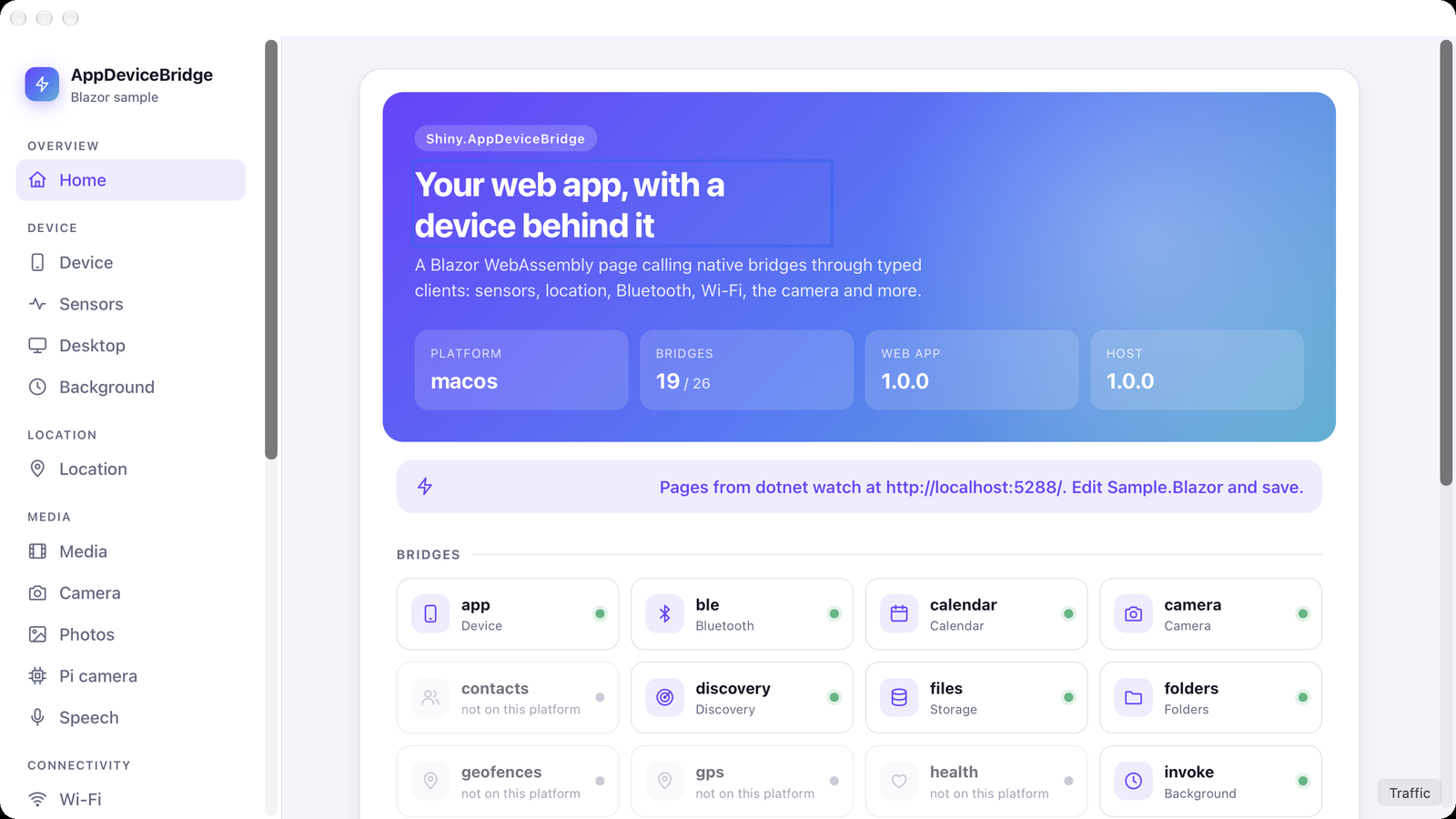
Here’s the Blazor sample in the macOS app. Contacts, GPS, geofences and health are greyed out, because macOS doesn’t have them:
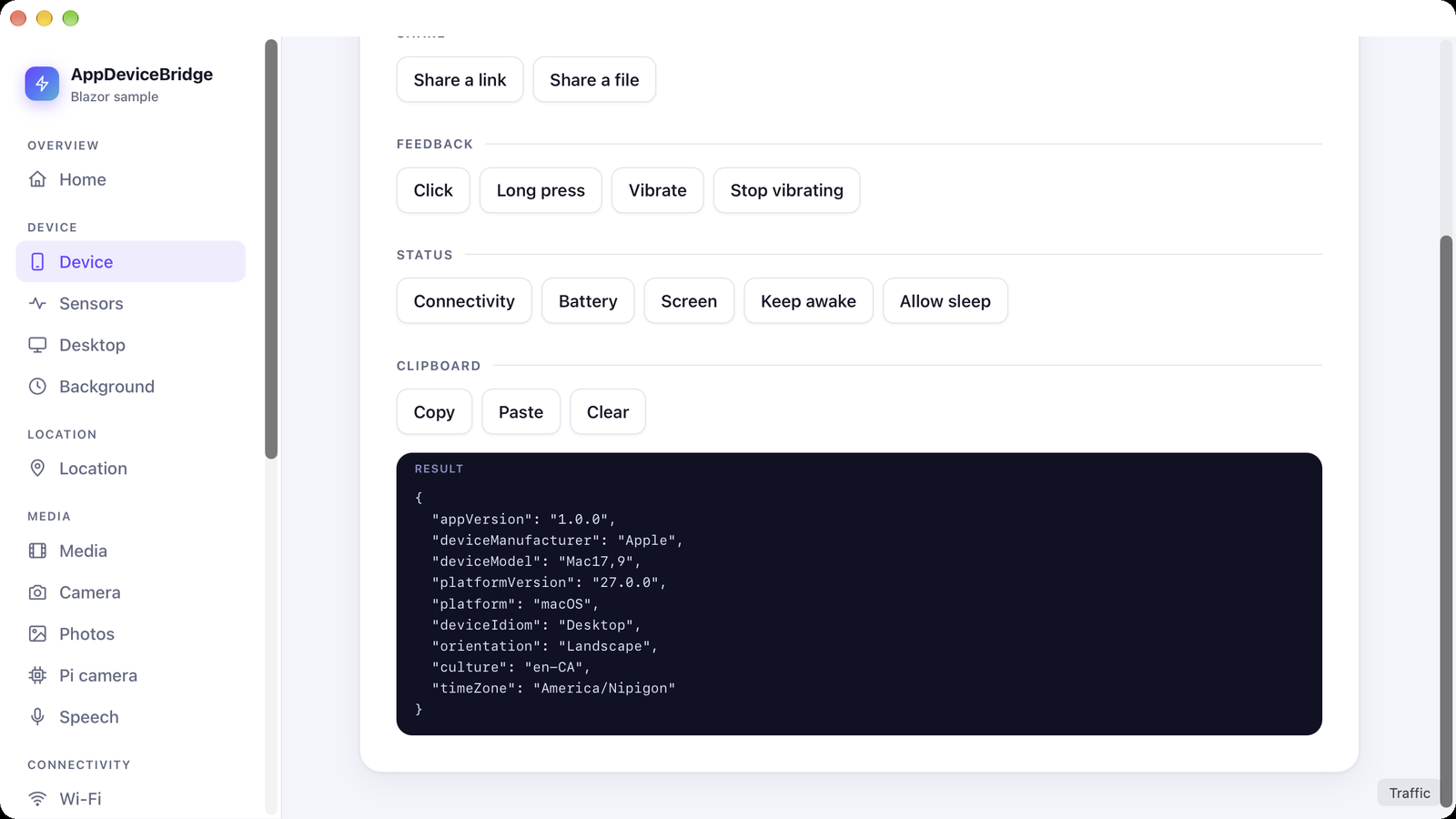
The same Device page reports real hardware, the Mac I took these screenshots on:
When there’s no page at all
This is the part people forget about until they ship.
A web page only runs while someone is looking at it. Put it in a WebView and it only runs while the app is in front. But a real mobile app does plenty of work when it isn’t: a sync every so often, a geofence the user just walked into, a push, a tap on a notification, a big download that finished overnight. The OS wakes the app for those, briefly, and nothing is drawing a page.
So every one of those arrives in two places, and the library picks:
- A page is open and listening: the call goes to the page. It has two seconds to say “mine”, and then it owns the call.
- No page, or it didn’t answer: the call runs in
background.js, a plain script at the root of the web app’s zip, inside an embedded JavaScript engine (Jint). No WebView involved.
Never both. I didn’t want a sync running twice because the page woke up halfway through.
bridge => bridge
    .AddWebAppJob("sync", job => job.WithInternet(InternetAccess.Any))
    .AddGeofenceBridge()
    .AddPushBridge(o => o.DispatchToWebApp = true)
// background.js
appdevicebridge.on("job:sync", async ({ name }) => {
const token = await (await fetch("/_bridge/settings/secure/token")).json();
const data = await fetch("https://api.example.com/sync", { headers: { Authorization: `Bearer ${token}` } });
await fetch("/_bridge/files/data/content?path=sync.json", { method: "PUT", body: await data.text() });
});The trick that makes this pleasant is that background.js talks to the same /_bridge as the page. It reads the same
secure settings, writes the same files and can send a notification, so the page and the background script share state
without either knowing the other exists. The same handler names cover background jobs, GPS readings and motion activity
delivered in the background, geofence transitions, pushes, notification taps and finished HTTP transfers.
The script is deliberately small: fetch, console and appdevicebridge.on, no DOM, no timers, nothing kept between
calls, and 25 seconds per call. That’s roughly the budget the OS gives you anyway.
And because it lives in the web app’s zip, your background logic updates over the air too. Fix the sync, publish a release, and the next time the OS wakes the app it runs the new code. No store review for that either.
Blazor gets one honest caveat. A page handler can be C#, but the background one can’t: Jint doesn’t run WebAssembly, and a hidden WebView is exactly what iOS suspends. So the background handler is a few lines of JavaScript that store their results through the bridge, and the Blazor app picks them up next time it opens. Also, the OS still decides when a job runs: every 15 minutes at best on Android, whenever it feels like it on iOS. No library can change that.
Hot reload, inside the real app
Over-the-air updates fix the slow outer loop. The inner loop was the next problem.
For a web app in a native shell, the usual choice is bad either way. You develop in a desktop browser, where the device features don’t exist, or you rebuild and redeploy the native app to see a CSS change.
So in a Debug build, the app loads its pages from dotnet watch on your machine, while the bridges stay on the
device:
#if DEBUG
webApp.DevServer = new Uri("http://localhost:5288");
#endif
Run dotnet watch, start the app from your IDE as usual, edit a .razor file and save. The change appears in the
running app, and it’s still calling the real GPS and the real Bluetooth radio. The native app isn’t rebuilt at any
point.
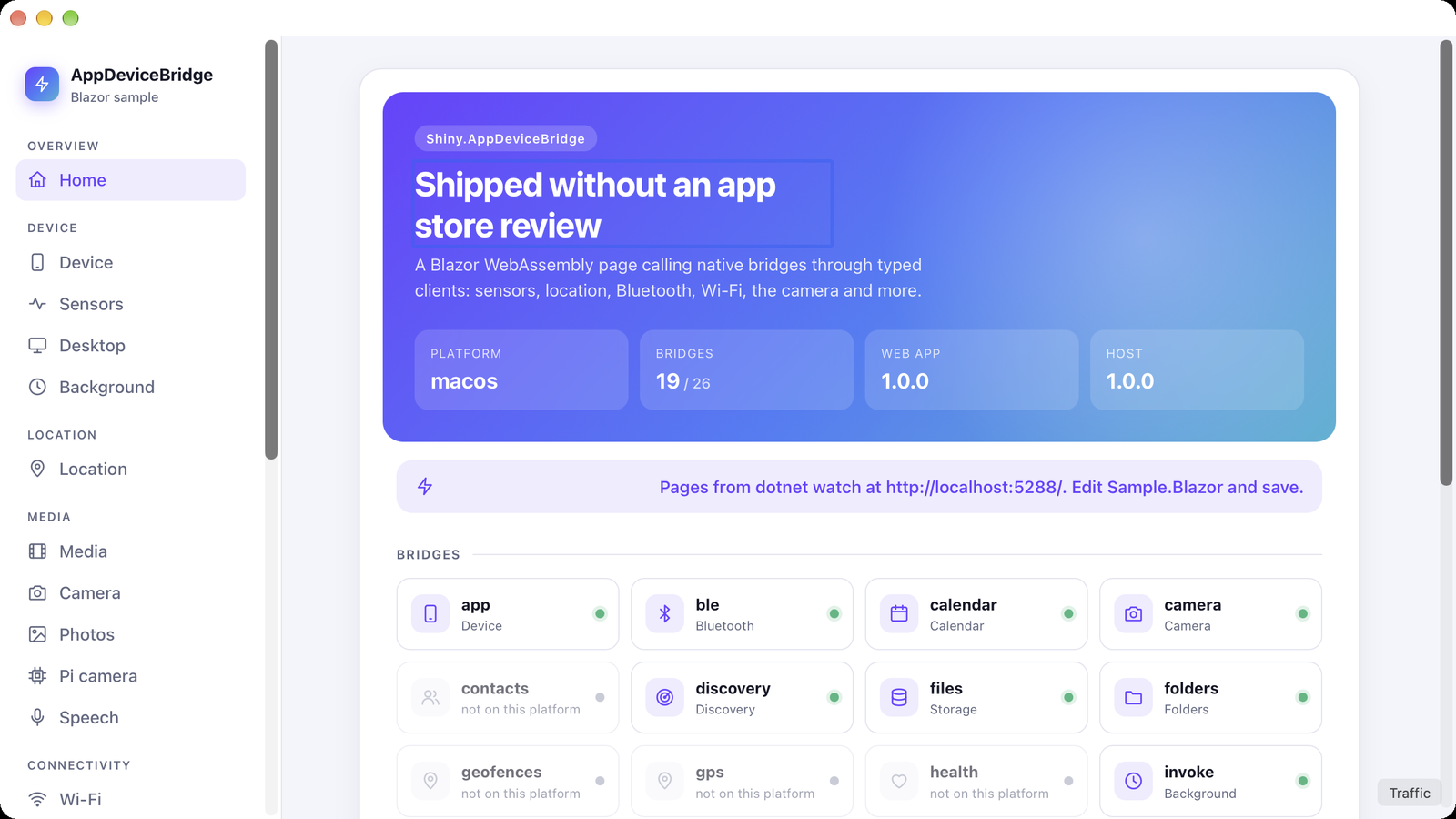
It works on the Android emulator (10.0.2.2), the iOS simulator, Mac Catalyst, macOS, Windows and Linux out of the box,
and over USB with adb reverse. If dotnet watch isn’t running, the app quietly serves its embedded build.
Testing device features without the device
This is the part I’m most pleased with.
Hot reload shortens the loop, but the loop still runs through a phone. Try testing these at your desk:
- The Wi-Fi drops halfway through a sync.
- The user tapped “Don’t Allow” on location.
- A Bluetooth device appears three seconds after the scan starts.
- Someone walks along the waterfront with the app open.
You can’t, really. You end up adding if (DEBUG) fakes throughout your page, and those fakes never match what the real
device sends.
So I built shiny-bridge-sim, a terminal app that stands in for the phone:
dotnet tool install -g Shiny.AppDeviceBridge.Simulator
shiny-bridge-sim --dev-server http://localhost:5288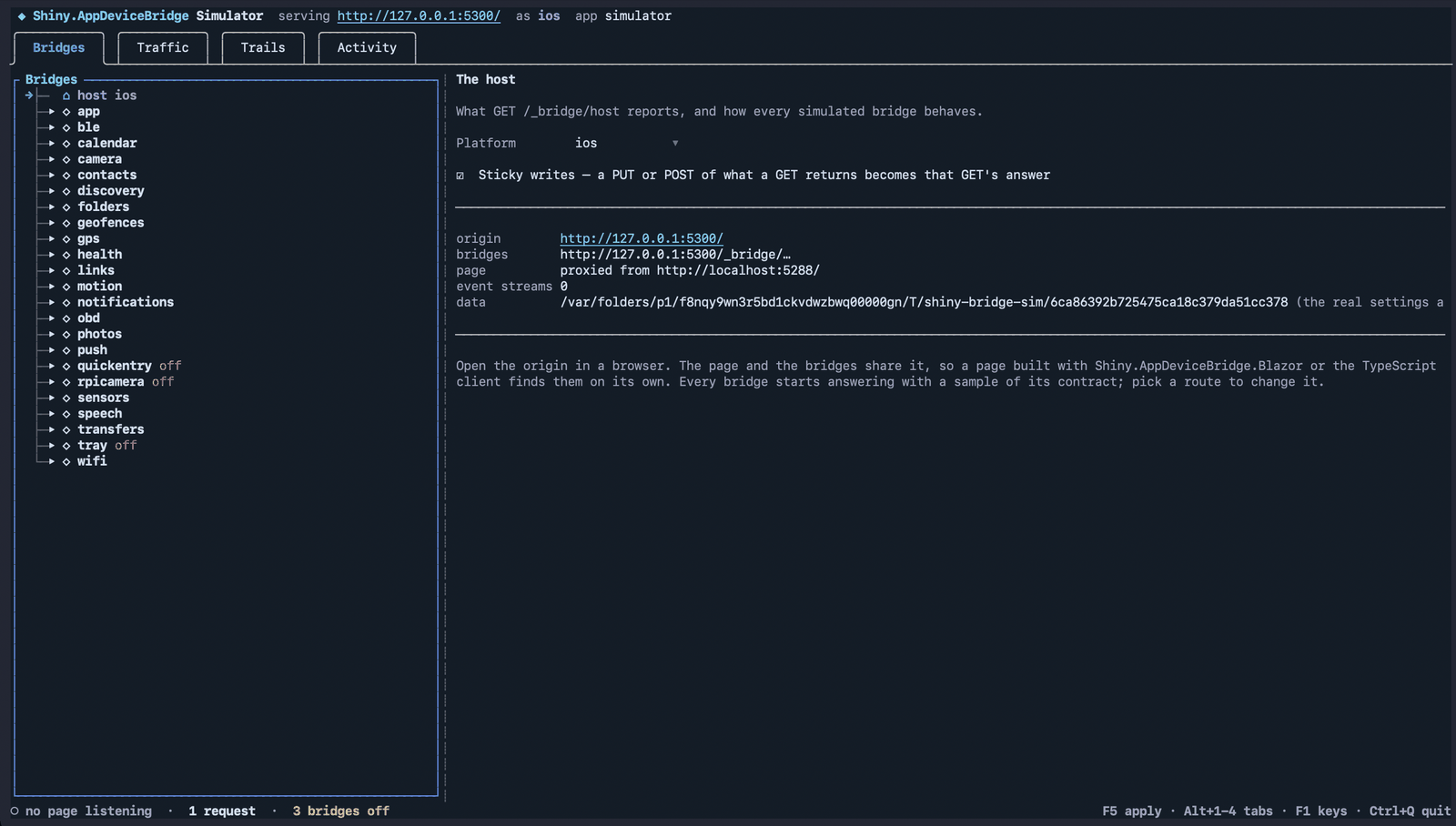
It isn’t a mock server I wrote by hand. It runs the real bridge server, with the same guard, the same policy and the
same event stream. Every device bridge is replaced by a simulated one generated from its [BridgeClient] interface, the
same declaration the C# and TypeScript clients come from. It can’t drift from the real contracts, and when I add a
bridge, the simulator picks it up.
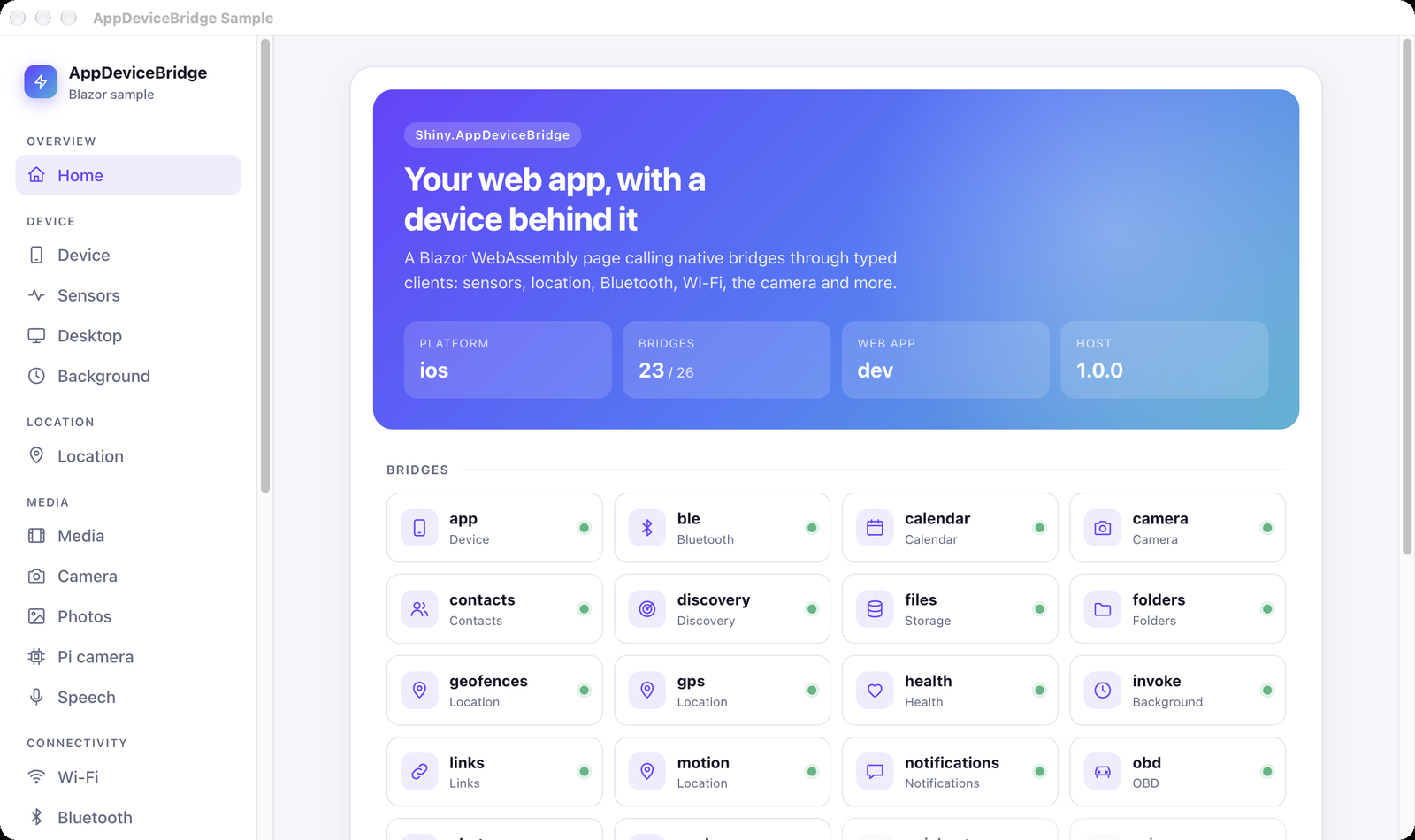
Open the printed address in any browser. The page needs no changes: same code, same clients. Here’s the sample in Chrome on my Mac, and the simulator says it’s an iPhone with health, GPS and contacts:
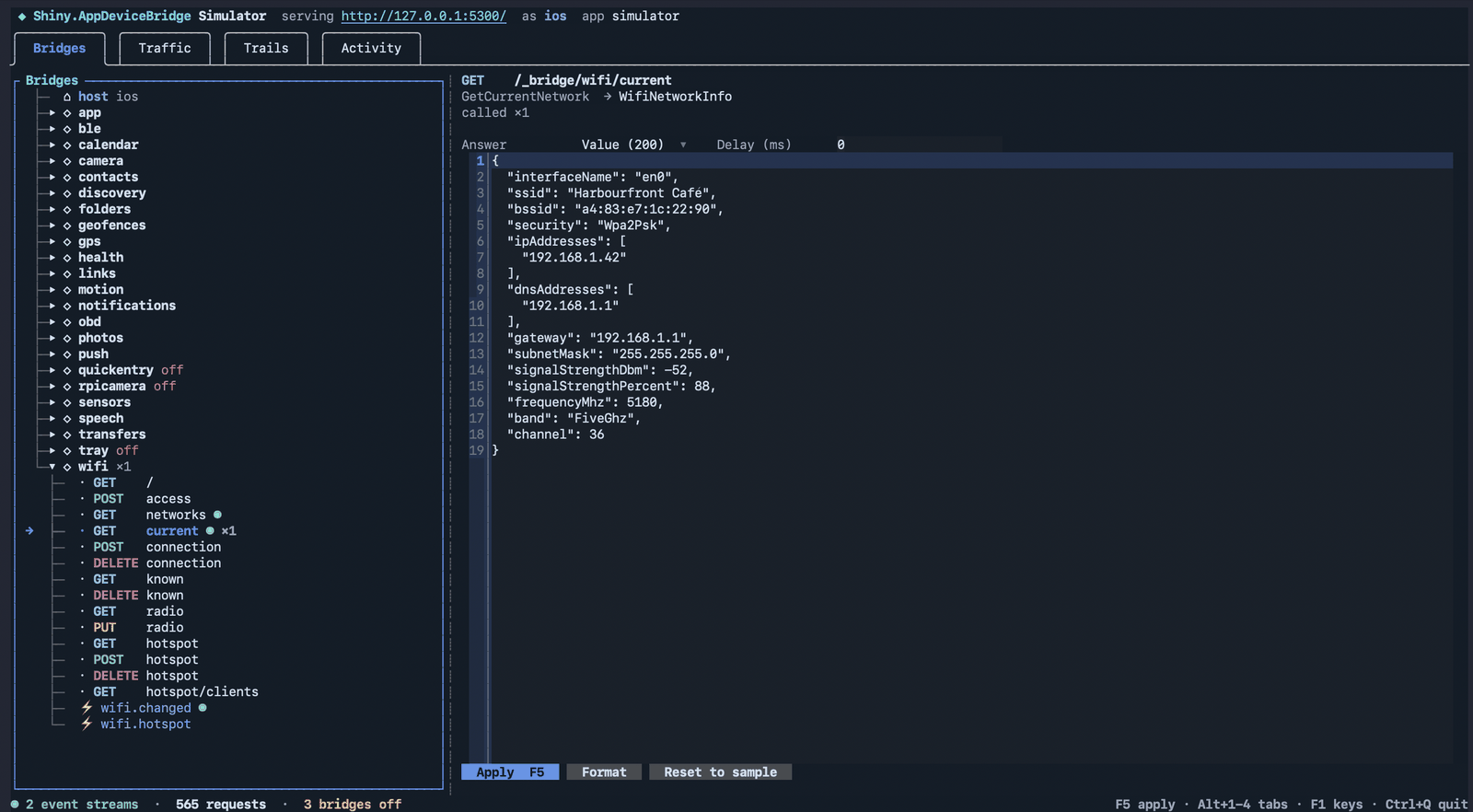
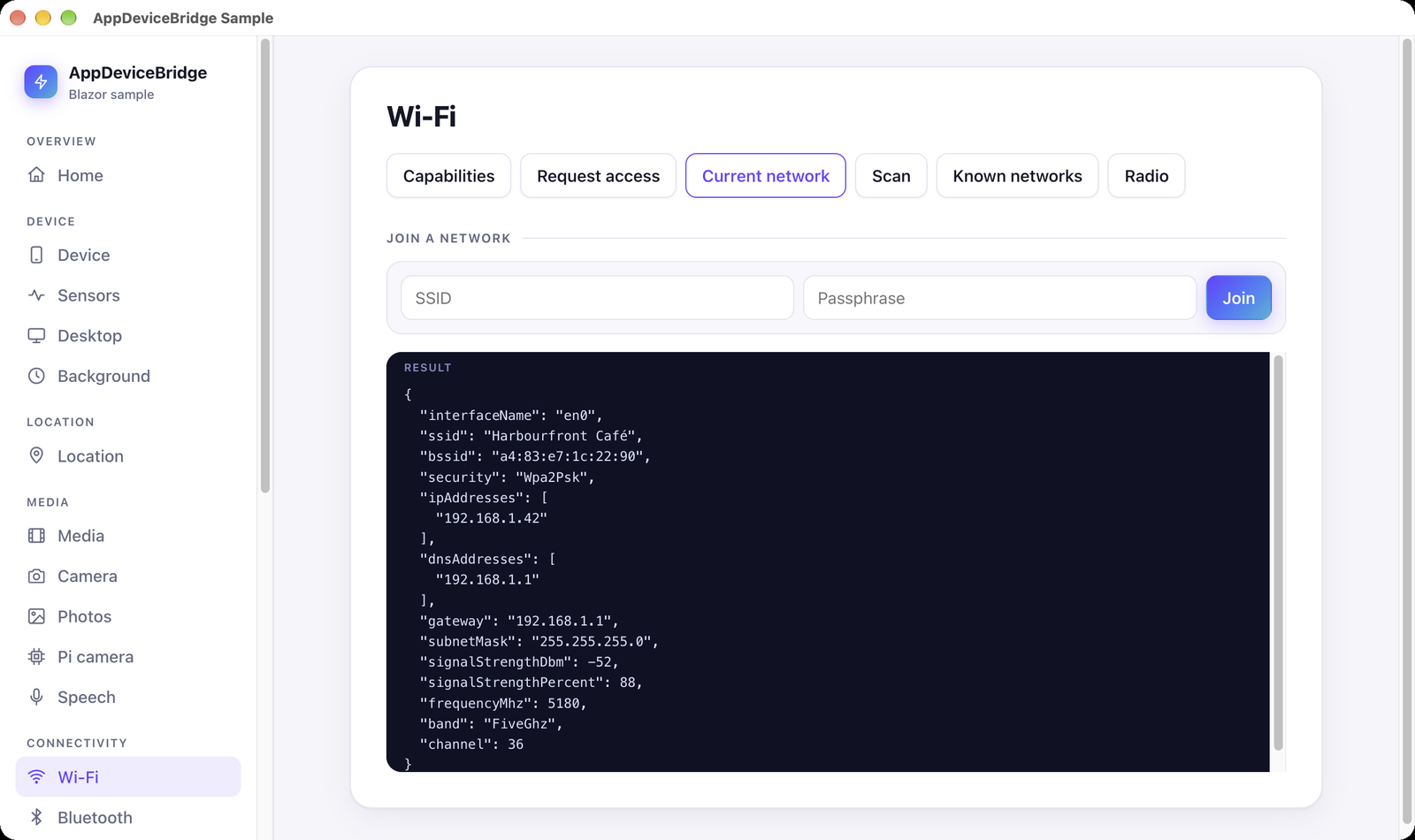
You pick a route and decide what it says. It can return a value, which is checked against the contract so you can’t send
something the real bridge never would. It can return a 204 null, or any error the real bridges use, such as
403 access_denied or 501 not_supported, with a delay if you want to see your spinner. The page gets a
BridgeException, exactly as it would on a phone.
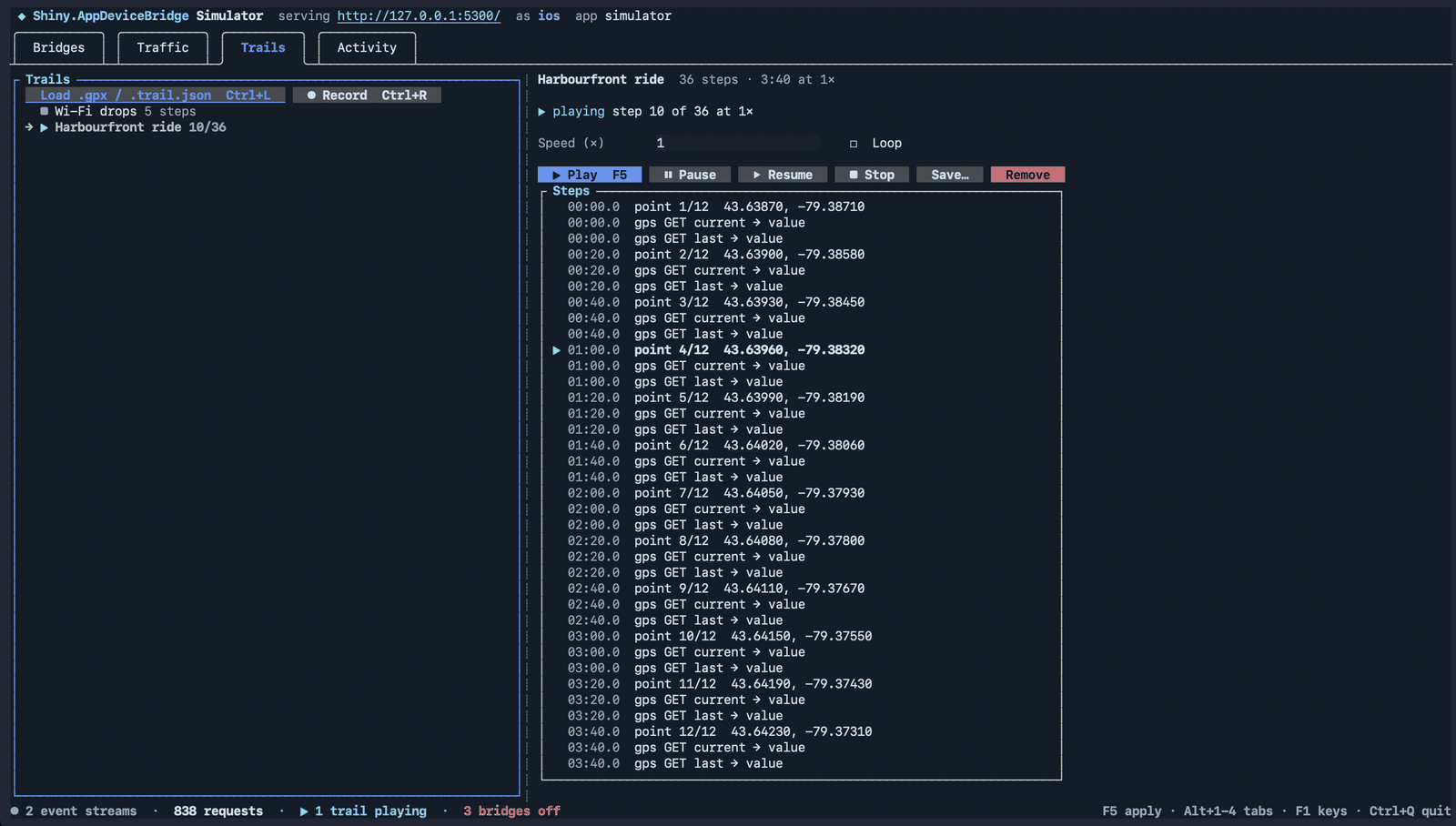
Trails are the fun part. A trail is a timed script: fire this event, then change that answer, then switch Bluetooth
off. Load a .gpx file and it plays as a GPS walk at its recorded pace, with heading and speed worked out from the
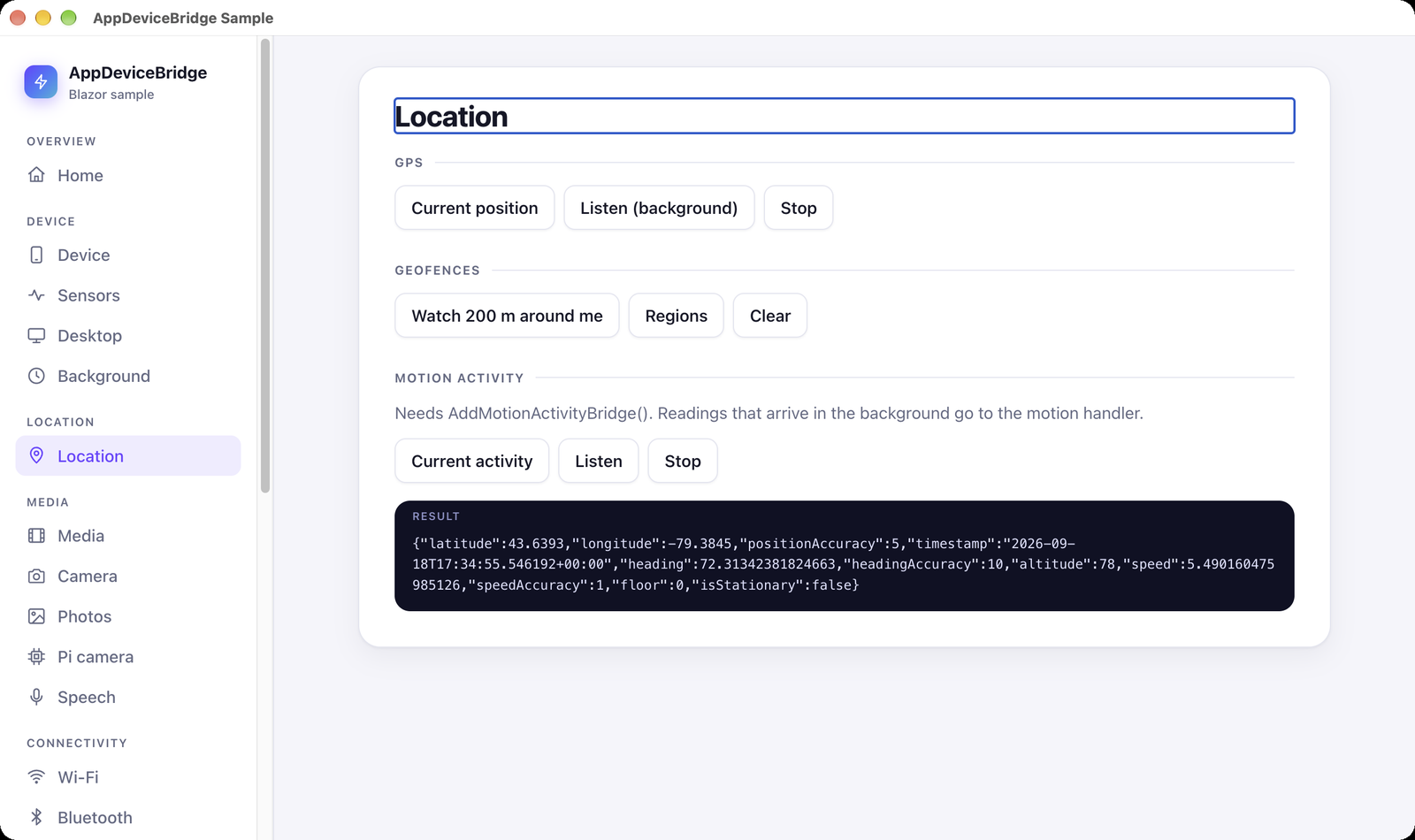
points. Here’s the sample’s scenario taking a ride along Toronto’s harbourfront, arriving in the page as live readings:
Press Ctrl+R and whatever you do in the Bridges tab is recorded as a trail. Reproduce a bug once, save it, and replay it exactly.
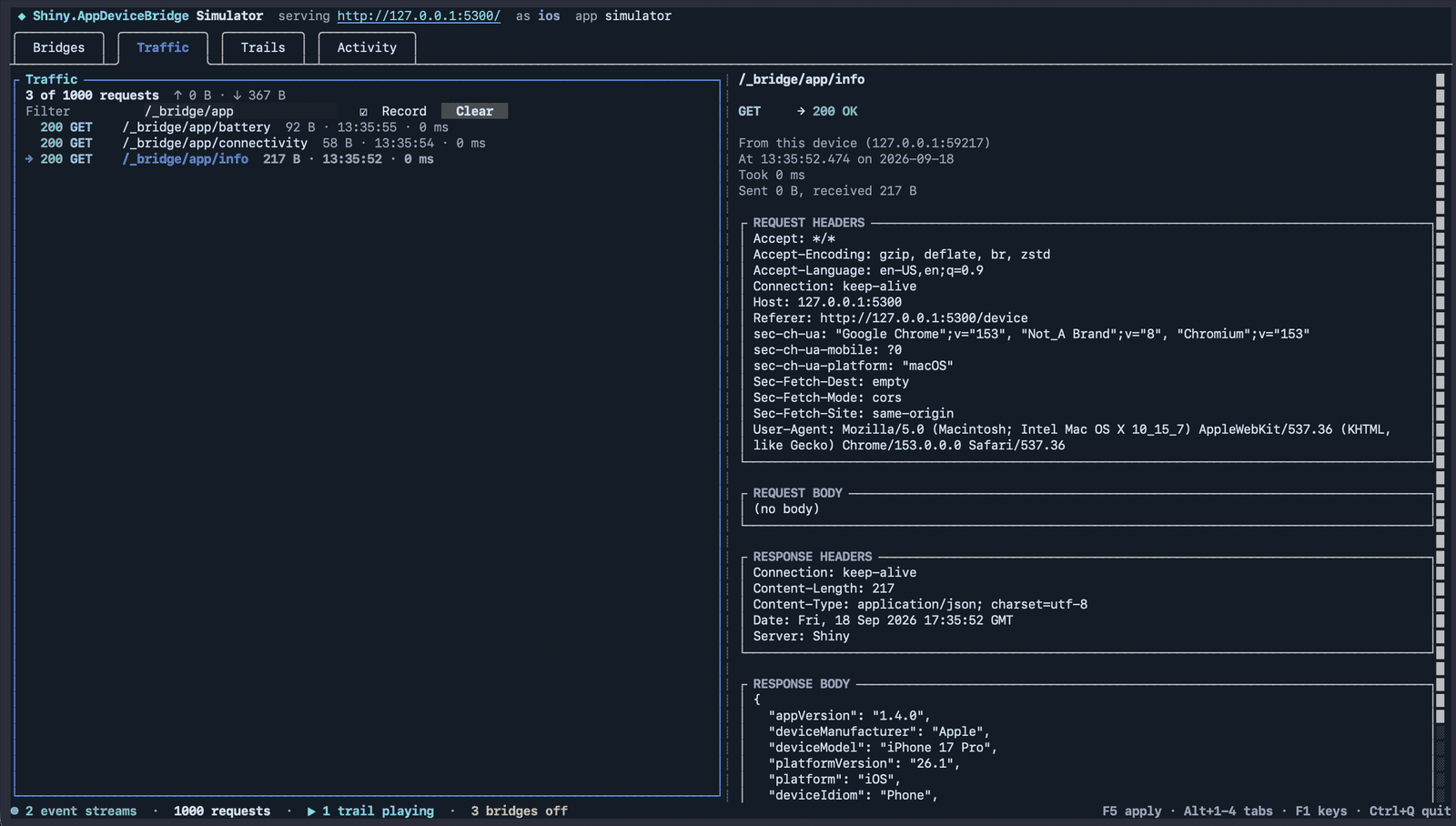
The Traffic tab shows every call the page made and the response it got, with full headers and bodies. Here’s a request from Chrome on macOS receiving an iPhone 17 Pro:
Ctrl+S saves the whole setup as a scenario, and --headless runs it without the TUI. Your Playwright tests in CI can
run against an “offline iPhone that denied location” without a device farm.
And when you do want the real hardware: in a Debug build the bridges admit any caller that isn’t coming through a tunnel. Point a browser on your laptop at the phone’s LAN address and you’re driving its actual GPS, radio or camera from your desk.
Where it runs
Android, iOS, Mac Catalyst and Windows, plus the maui-labs macOS (AppKit) and Linux (GTK4) heads. Yes, that includes a
Raspberry Pi, with a camera bridge for it. A bridge either works on a platform or says 501, never anything stranger.
The simulator runs anywhere .NET 10 does.
Try it
The docs cover the packages, the update rules, hosting, security and every
simulator option. The repo’s samples/ folder has everything in this post: the Blazor sample in every MAUI head, a
release server with a dev key pair, and a simulator scenario with that harbourfront ride.
If you’ve ever pushed a one-line fix and then waited a week for it to reach users, give it a spin and tell me what breaks.