Faces, Voices & Documents — On-Device Recognition Controls for .NET MAUI
On this page
This post is part of MAUI UI July 2026 — Matt Goldman’s annual community series, a month of .NET MAUI UI content from across the community. Go read the rest of them; there’s a lot of good stuff in there.
Every “add face recognition to your app” tutorial I’ve read ends at the same place: upload the image, call someone’s cloud API, get a name back. Which is fine right up until the moment someone asks the question that actually matters — where did that face go? On a shop floor, a clinic, a warehouse terminal, the answer “it went to a vendor’s GPU in another country” is the end of the conversation.
So I built the version where the answer is “nowhere”. Three stacks, all running locally:
Shiny.FaceIntelligence— face enrollment + recognition, live off the camera previewShiny.VoiceIntelligence— speaker (voiceprint) enrollment + recognition from a mic bufferShiny.DocumentIntelligence— a native document scanner plus on-device extraction into typed records
No network calls. No API keys. No inference bill. The models sit in your app bundle and the vectors sit in a SQLite file in your app’s data directory.
Since this is a UI series, here’s the punchline first — face recognition, guided face enrollment and guided voice enrollment, on screen and working, are three MAUI controls:
<fi:FaceRecognitionView FaceRecognized="OnFaceRecognized" />

<fi:FaceEnrollmentView PersonIdentifier="{Binding EmployeeId}" Completed="OnCompleted" />

<vi:VoiceEnrollmentView PersonIdentifier="{Binding EmployeeId}" Completed="OnEnrolled" />
No injected services, no permission plumbing, no camera lifecycle, no analyzer wiring, no overlay drawing, no countdown timers. The rest of this post is largely about what those three lines had to swallow to stay three lines.
It all lives at github.com/shinyorg/recogintelligence — libraries, the MAUI sample app, tests and benchmarks. The repo goes public shortly, and the packages follow it onto NuGet; the full list is at the bottom.
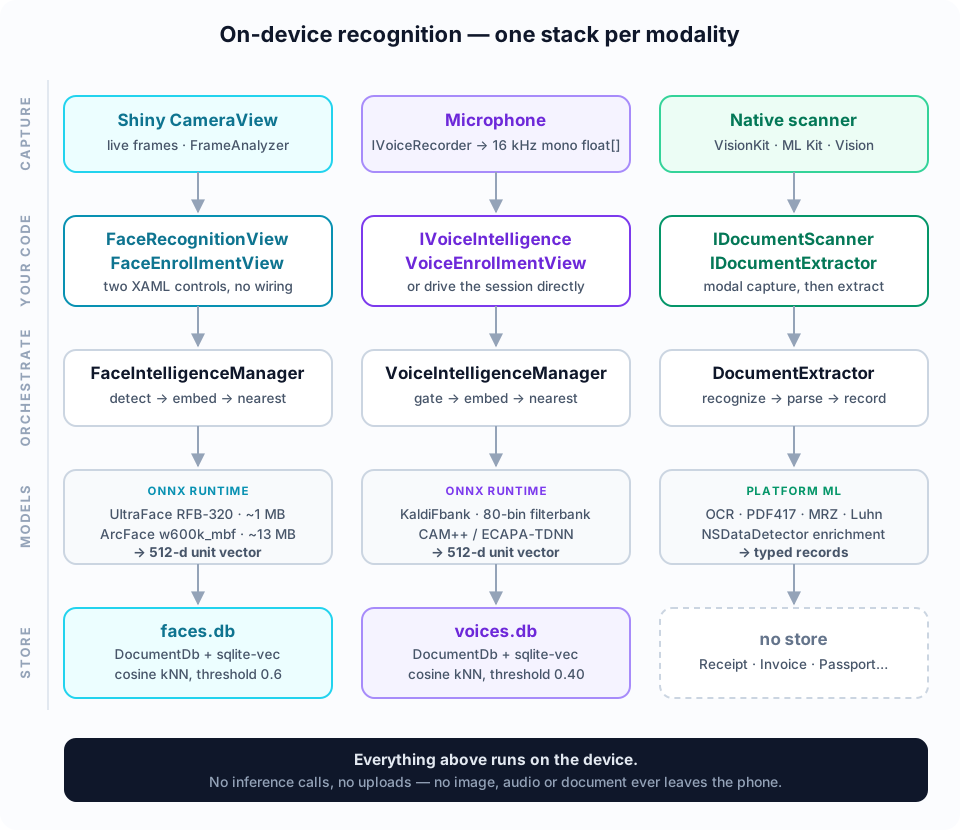
Two of those three columns are the same architecture with the modality swapped, which was very much on purpose — if you learn the face stack you already know the voice stack.
First, the thing I have to say out loud
This is not an authentication system. I want that established before any of the fun parts, because the failure mode of “cool, biometric login!” is somebody’s actual security.
A face embedding is defeated by a photograph. A voiceprint is defeated by a recording, and in 2026 it’s defeated by about thirty seconds of cloned audio. There is no liveness detection and no presentation-attack detection anywhere in these libraries — I checked, deliberately, and wrote it down. What the pipeline answers is “which enrolled template is this closest to?” It does not, and cannot, answer “is there a live human in front of the sensor right now?”
So what is it good for? Recognition as convenience, on a device that’s already trusted.
The case I keep coming back to is the shared workplace device. A tablet bolted to a wall in a warehouse, a till, a nurses’ station terminal, an iPad passed between six people on a shift. Everyone hates the shared login. Nobody wants to type a password with gloves on, twelve times a shift, on a device that’s physically inside a building you already had to badge into.
That’s the sweet spot: the device is shared, physical access is already controlled, and what you want is “oh, it’s Dave again — load Dave’s queue, Dave’s language, Dave’s open work orders.” Being wrong there costs a wrong-name banner and a tap on Not me. Compare that to being wrong on a login screen.
The rule I’d hold anyone to, including me:
Use it to personalize, not to authorize. If getting it wrong lets someone see or do something they shouldn’t, it needs a real factor — a PIN, a badge, a passkey. Recognition can pick who to prompt; it shouldn’t be the thing that decides whether to prompt.
The upgrade path from convenience to something with teeth isn’t a better threshold, it’s challenge–response: generate a random prompt (“say seven-four-one-nine”), then require both that the transcript matches and that the voiceprint matches. A stockpiled recording can’t answer a prompt it’s never heard. Combine that with the face stack — “look at the camera and say the numbers” — and you’ve got a genuinely useful on-device liveness gate. That’s on the roadmap; it isn’t in the box today, and I’d rather say so than let a demo imply otherwise.
Right. Now the fun parts.
The controls
This is the part I care most about, and the reason any of the rest is usable.
Two controls, deliberately not one control with a Mode flag — recognition wants one fast confident answer, enrollment wants a diverse gallery with steps and prompts and progress. A single control would leave half its API dead in either mode, and every consumer would start their day reading which half applied to them.
Both derive from ContentView and host a CameraView internally, which is what makes them composable — drop one in a Grid and layer your own chrome on top:
<Grid>
    <fi:FaceRecognitionView x:Name="FaceCamera"
                            FaceRecognized="OnFaceRecognized"
                            CameraFailed="OnCameraFailed" />

    <Border VerticalOptions="End" Margin="16" Padding="16,12"
            BackgroundColor="#CC000000" StrokeShape="RoundRectangle 14">
        <Label Text="{Binding ResultText}" TextColor="White" FontSize="18"
               HorizontalTextAlignment="Center" />
    </Border>
</Grid>
That’s the sample’s whole Recognize page. The control is a normal MAUI view: it lays out, it sizes, it participates in your Grid, you put a Border over it.
What the control swallows so you don’t write it
| Concern | Who handles it |
|---|---|
| Camera permission request | the control |
Start/stop across Loaded, Unloaded, HandlerChanging, page Disappearing |
the control |
Resolving IFaceIntelligence / the analyzer from DI |
the control |
| Frame → upright bitmap → detect → embed → match | the analyzer |
| Overlay drawing (guide oval, detection box, scrim) | the control |
| What to show the user | you |
The DI one is worth calling out for anyone writing MAUI controls, because a control isn’t constructed by the container and has nothing injected. The trick is that once a handler is attached, the whole app’s services are reachable from the view:
IServiceProvider? Services => this.Handler?.MauiContext?.Services;That’s how FaceRecognitionView gets its IFaceIntelligence and its analyzer without the consumer registering anything except AddTransient<FaceRecognitionAnalyzer>() — transient because it carries per-camera state, so two camera pages don’t share a stability counter.
The recognition control’s surface
Small on purpose:
| Member | Type | Notes |
|---|---|---|
Facing |
bindable | Front by default — it’s an identify-yourself control |
RecognitionEnabled |
bindable | pause matching while keeping the preview alive |
FaceRecognized |
event | fires for every attempt, including no-match |
CameraFailed |
event | permission refused or hardware error, with the reason |
HasFace / Analyzer |
properties | for the rare case you need the raw pipeline |
EnrollAsync(id) |
method | one-shot enroll from the frame the analyzer just looked at |
FaceRecognized firing on a no-match matters more than it sounds. If the event only fired on success, your label would keep showing the last person recognized while a different person stands in front of the camera. Firing every attempt lets the UI say “Unknown” honestly:
void OnFaceRecognized(object? sender, FaceRecognizedEventArgs e)
    => this.vm.ResultText = e.Result.IsMatch
        ? $"{e.Result.PersonIdentifier} ({e.Result.Similarity:P0})"
        : "Unknown";
Tuning lives on the analyzer, not on the control’s XAML surface, because these are frame-pipeline concerns rather than UI ones: StabilityFrames (3), RecognitionInterval (2 s), MaxAnalysisWidth (720), MinConfidence (0.7).
The enrollment control is a wizard in a box
FaceEnrollmentView is the more interesting of the two, because a guided wizard is normally pages of UI — prompts, a progress indicator, a countdown, per-step validation, a hint line when something’s wrong. All of that is inside the control, drawn over the preview, and the consumer’s job is three events:
<fi:FaceEnrollmentView x:Name="FaceCamera"
                       PersonIdentifier="{Binding EmployeeId}"
                       Progress="OnProgress"
                       Rejected="OnRejected"
Completed="OnCompleted" />this.FaceCamera.BeginEnrollment(); // kick off the sequenceProgress reports step and captured count, Rejected hands you a ready-to-show hint (“Move closer — fill the outline”), and Completed gives you a FaceEnrollmentResult with the shots stored, the steps skipped, and MinPairwiseDistance — the tightest pair in the gallery, i.e. how much variety the session actually achieved.
The knobs are plain CLR properties with defensible defaults: Steps, MinNoveltyDistance (0.18), StepCountdown (3 s), StepTimeout (12 s), MinSharpness, MinBrightness/MaxBrightness, RequiredStableFrames.
One UX decision I’d defend: the countdown is visible, not silent. “Get ready… 3, 2, 1” then “Hold still…”, and captures are only accepted after it. My first cut fired the moment the gates passed and completed all six steps in about six frames — which is to say it took six shots of whatever was already in front of the lens and called it a varied gallery. When you can’t verify the pose, the prompt plus the pause is the mechanism.
The overlay: GraphicsView, an even-odd scrim, and one nasty coordinate trap
The “face hole” is a GraphicsView layered over the CameraView with an IDrawable. It’s a lovely small demonstration of Microsoft.Maui.Graphics, so here’s the actual drawing:
// Dim everything EXCEPT the oval: one path with a rect and an ellipse, clipped even-odd.
// Even-odd is what turns the inner figure into a hole instead of a second solid.
var path = new PathF();
path.AppendRectangle(dirtyRect);
path.AppendEllipse(oval);

canvas.SaveState();
canvas.ClipPath(path, WindingMode.EvenOdd);
canvas.FillColor = this.ScrimColor;          // #000 @ 55%
canvas.FillRectangle(dirtyRect);
canvas.RestoreState();

// Amber and dashed while off-target; solid green the instant the face fits.
canvas.StrokeColor = this.IsAligned ? this.AlignedColor : this.UnalignedColor;
canvas.StrokeSize = this.IsAligned ? 5f : 3f;
canvas.StrokeDashPattern = this.IsAligned ? null : [10f, 6f];
canvas.DrawEllipse(oval);
The live detection is drawn as a faint box as well, which turns out to be the single most useful pixel on the screen: without it people have no idea which way to move, and with it they self-correct in about a second.
Now the trap — and this one will catch anyone drawing over any camera preview in MAUI, whatever the feature.
The preview is AspectFill. The frame is scaled to cover the view and the overflow is cropped: a 720×1280 analyzed frame in a 393×490 view renders at 393×699 and loses ~200 px vertically. But your detections arrive in full-frame normalized coordinates, in which that cropped-away 200 px still counts toward 1.0. Draw a guide authored in full-frame coordinates and it renders oversized and partly off-screen — mine ran off the top-left and covered 76% of the preview height instead of the 52% I designed.
So the drawable does the AspectFill mapping itself:
// Cover: whichever axis is relatively short gets scaled up, and the other is cropped.
if (imageAspect > viewAspect) { displayH = view.Height; displayW = view.Height * imageAspect; }
else                          { displayW = view.Width;  displayH = view.Width / imageAspect;  }

var offsetX = view.X + ((view.Width  - displayW) / 2f);
var offsetY = view.Y + ((view.Height - displayH) / 2f);
Two smaller traps that fail the same way. Derive the oval’s width from its pixel height, not from a normalized height — normalized X and Y have different pixel scales on any non-square frame, so a normalized-derived width draws a visibly squashed oval. And carry the frame’s ImageWidth/ImageHeight on the detection result, or the overlay has no way to reproduce the transform at all; AnalyzedFace exposes them for exactly this reason.
The enrollment wizard gates on what it can actually measure
Every guided-enrollment UI I’ve seen says “now turn your head slightly to the left”. Here’s the thing: the detector returns a box and a confidence. No landmarks, no yaw, no pitch. So that instruction can be displayed but never verified — the wizard has no idea whether you turned your head or ignored it entirely.
So the wizard checks the things it can prove:
| Gate | Verifiable? |
|---|---|
| Fits the target oval (position and size) | yes — plain geometry |
| Face size vs frame | yes |
| Steadiness | yes |
| Sharpness + brightness | yes — variance-of-Laplacian at a fixed 96×96 |
| Novelty vs shots already captured | yes |
| Head angle | no — instructed only |
Novelty is the gate doing the real work. The entire point of a varied gallery is embedding spread — so measure the spread directly instead of trusting that someone followed an instruction. Each candidate is embedded and rejected if it’s within MinNoveltyDistance of anything already captured. That’s what stops six near-identical front-on shots.
And the default matters: it’s 0.18, not the 0.06 I first shipped. 0.06 is inside the model’s own frame-to-frame jitter — the same face measured 0.084–0.526 apart across a few seconds on a real device, so every single frame read as “novel” and the gate did nothing at all. At 0.18 you can watch it discriminate properly (nearest 0.1298 → rejected; 0.2184 → accepted).
Instead of unverifiable pose instructions, the steps move the target oval around the frame — centre, left, right, top, closer, further. The person physically moves, so the camera genuinely sees them from a different angle, and “is the face inside this oval at roughly this size” is something the code can actually check. That’s why the overlay isn’t decoration: moving a shape around the screen is what converts an unverifiable instruction into a measurable one.
Last thing: each accepted shot is enrolled immediately, not batched to the end. Batching meant one unsatisfiable step — “move back”, on a phone at arm’s length that physically cannot make the face small enough — discarded every shot already captured. Five prompts completed, nothing stored. Now a step that can’t be satisfied times out after 12 s, gets reported in SkippedSteps, and everything else is kept.
That’s the UI. Everything from here down is what those two controls are standing on — the models, the frame pipeline they ride, and the database that answers “who is this?” in a few milliseconds. You can stop here and still ship something; carry on if you want to know why the defaults are the defaults.
Local models, and what they actually cost you
This is the on-device half of a pair. My other MAUI UI July post, Giving your .NET MAUI a real set of AI Wings, is the other half — a chat UI on Microsoft.Extensions.AI with a hosted model behind an IChatClient. Same app, opposite trade: that one gets you a model that can reason about anything and needs a network; this one gets you a model that does exactly one thing, in ~20 ms, on a plane.
Everything runs through ONNX Runtime. The face stack uses two models:
| Model | Job | Size |
|---|---|---|
| UltraFace RFB-320 | find the face box | ~1 MB |
ArcFace w600k_mbf (MobileFaceNet) |
box → 512-d embedding | ~13 MB |
and the voice stack uses one — a WeSpeaker CAM++ / ECAPA-TDNN export that turns an utterance into a 512-d voiceprint.
Model choice is the whole app-size conversation. ArcFace w600k_r50 is ~166 MB; the MobileFaceNet variant is ~13 MB and I have never been able to tell the difference in practice on a phone-sized gallery. The fixed floor underneath that is ONNX Runtime’s own native lib — roughly 33 MB on iOS arm64, 17 MB on Android arm64-v8a. If that floor genuinely hurts, a reduced ORT build (--minimal_build + --include_ops_by_config, with .ort-format models) strips it down to just the operators your model uses. That’s a real day of work, so only do it if the megabytes are real money.
Models load lazily, on first enroll or recognize, from bundled asset bytes:
builder.Services.AddFaceIntelligence(face =>
{
    face.Options.MaxDistance = 0.6f;   // cosine distance — lower is stricter

    face.UseOnnxEmbedder(o => o.ModelBytesProvider = () => LoadBundled("arcface.onnx"));
    face.UseOnnxDetector(o => o.ModelBytesProvider = () => LoadBundled("face_detector.onnx"));

    face.UseSqliteStore(o => o.ConnectionString = $"Data Source={Path.Combine(dir, "faces.db")}");
});
Note ModelBytesProvider rather than a path. Bundled assets aren’t real file paths on iOS or Android, so the provider reads them through FileSystem.OpenAppPackageFileAsync — and because it’s lazy, a missing model surfaces as a catchable FileNotFoundException inside the page that needed it, not as a crash on startup.
One thing worth being precise about, because the word misleads people: “training” here is enrollment, not model training. Nothing is trained on-device. You’re storing vectors and doing nearest-neighbour lookups against them. Which means enrollment is instant, forgetting someone is a DELETE, and there’s no drift, no retraining job, no model artifact per user.
Running ONNX in a MAUI app: the three things that bite
If you’ve never shipped ONNX Runtime inside a MAUI app, these are the ones that cost real time. None are exotic; all three are load-bearing.
1. Your model is not a file. Resources/Raw gets bundled into the app package, and on iOS and Android that package is not a filesystem path you can hand to new InferenceSession(path). Read the bytes instead:
static async Task<byte[]> LoadBundled(string name)
{
    await using var stream = await FileSystem.OpenAppPackageFileAsync(name);
    using var ms = new MemoryStream();
    await stream.CopyToAsync(ms);
    return ms.ToArray();
}
The options type accepts a provider, raw bytes, or a path (in that priority) — the path overload is there for desktop and server, where a real file does exist.
2. Load lazily, or you own every startup failure. Sessions are created on first use, not at registration. A 13 MB model deserialized during DI setup is startup latency every launch, on every device, whether or not the user visits that screen — and if the file is missing, you’ve turned a screen-level error message into a crash before the first frame. Lazy means the failure lands inside the operation that needed it, where the page can catch it and say “model missing” like any other error.
3. Keep the inference path reflection-free. Everything here is IsAotCompatible, which for ONNX means the tensor work is fine (it’s just arrays and spans) but the serialization around it isn’t free — hence a source-generated JsonSerializerContext for the stored documents, fed to the document store explicitly. If you add a persisted type, it goes in that context or it fails at runtime in a trimmed build and nowhere else.
Recognition rides the frame analyzer, not the shutter
The face stack is built on Shiny.Maui.Controls.Camera and its FrameAnalyzer pipeline. This is the design decision that fixed the most bugs, so it’s worth explaining what it replaced.
The first version did the obvious thing: subscribe to the camera’s face-detection event, and on each detection call CapturePhotoAsync() and run recognition on the still. It worked in the demo and was wrong in about four ways at once. Two different face detectors (the camera’s and mine) in two different coordinate spaces (normalized 0..1 versus pixel boxes). A full still capture per detected frame. And a re-entrancy guard that latched forever the first time a capture wedged.
Now there’s one analyzer:
public class FaceRecognitionAnalyzer : FrameAnalyzer
{
    // per frame:
    //   ToUpright(frame, MaxAnalysisWidth)   → one mirror-corrected, rotated SKBitmap
    //   JPEG-encode once
    //   IFaceDetector.Detect(...)            → cheap, every frame
    //   → OverlayBox for the live preview
    //
    // the expensive half — ArcFace embed + sqlite-vec query — only runs once the
    // face has held steady, then throttles.
}
The cheap geometric work happens on every frame; the 512-d embed and the vector query happen when the face has been stable for StabilityFrames (3) and at most every RecognitionInterval (2 s). The camera pipeline runs analyzers max-one-in-flight and drops frames while busy, so the analyzer self-paces — it can take a whole frame interval without ever backing up the preview.
One coordinate space is the load-bearing idea. FrameImageConverter.ToUpright produces a single upright, mirror-corrected bitmap, and everything — the detector’s pixel box, the embed crop, the normalized overlay rectangle — is expressed against that one bitmap. Rotation and mirroring are applied once, up front, from CameraFrame.Rotation and IsMirrored. (Subtlety: the mirror is applied in sensor space, before the rotation, because that’s where the flip physically happens.) That converter is the only per-platform code in the whole package — a Marshal.Copy from the managed BGRA buffer on Apple, and a managed YUV_420_888 conversion on Android that subsamples straight to the target width so cost scales with MaxAnalysisWidth rather than sensor size.
The bug that justifies the whole design
Enrollment used to capture a still. Recognition analyzed frames. Same person, same phone, and distances were consistently, mysteriously off.
Of course they were. The still and the frame went through different preprocessing: different orientation handling, and on the front camera a mirror that the analyzer corrects and the still doesn’t. That’s a systematic offset applied to every single distance in the gallery — and no amount of tuning MaxDistance fixes a systematic offset, it just trades false rejects for false accepts.
So: enroll and recognize share the pipeline, always. Enrollment stores analyzer.LastFace — the exact JPEG bytes and pixel box the recognizer would have been handed. If you add another enrollment entry point, route it through the same place.
sqlite-vec as the vector database
Matching is a nearest-neighbour lookup over unit vectors, and the store behind it is Shiny.DocumentDb with the sqlite-vec extension. Registration is one line — UseSqliteStore(...) — but there are three details inside it I’d defend in a code review.
The vector dimension comes from the model, not from a constant.
var embedder = sp.GetRequiredService<IFaceEmbedder>();
options.MapVectorProperty<Person>(p => p.Embedding, embedder.Dimensions, VectorDistance.Cosine);
Hardcode 512 and the day you swap to a 192-d ECAPA export you get silently corrupted voiceprints instead of an error.
The embedding never lands in the JSON document. Person.Embedding is [JsonIgnore]d — it lives only in the vec0 sidecar table and comes back empty from document queries. The JSON blob stays small and human-readable; the float payload lives where the index is.
Each stack’s IDocumentStore is private and never registered in the container. This one bit me. If both the face and voice stacks register an IDocumentStore, GetRequiredService<IDocumentStore>() hands you the last one — so the face store silently starts reading voices.db, mapped for Speaker. Now each stack builds its own store and hands it straight to its adapter, and only IFaceStore / IVoiceStore are visible. There’s an integration test that registers both stacks and asserts neither leaks.
The adapter itself is about as thin as it gets:
public class DocumentDbFaceStore(IDocumentStore store) : IFaceStore
{
    public Task Add(Person person, CancellationToken ct = default)
        => store.Insert(person, cancellationToken: ct);

    public async Task<IReadOnlyList<FaceMatch>> FindNearest(ReadOnlyMemory<float> embedding, int count, CancellationToken ct = default)
    {
        var hits = await store.NearestVectors<Person>(embedding, count, cancellationToken: ct);
        return hits.Select(h => new FaceMatch(h.Document, h.Score)).ToList();
    }

    public Task<int> RemoveByPersonIdentifier(string personIdentifier, CancellationToken ct = default)
        => store.Query<Person>().Where(p => p.PersonIdentifier == personIdentifier).ExecuteDelete(ct);
}
Everything else is IFaceEmbedder + IFaceStore + options — the core package has no ONNX and no DocumentDb dependency at all. Swap in a platform-native embedder, or point the store at Postgres/pgvector for a server-side enrollment tool, and the orchestrator doesn’t notice. That’s also why the same core drives both the phone app and the test suite, which runs against a real sqlite-vec store with a fake embedder so the geometry is controlled but the database is genuine.
Voice: the same architecture, one modality over
The voice stack is a deliberate one-to-one mirror of the face stack. Same builder, same validation, same “dimension read from the embedder”, same [JsonIgnore]d embedding in the vec0 sidecar:
builder.Services.AddVoiceIntelligence(voice =>
{
    voice.Options.MaxDistance = 0.40f;

    voice.UseOnnxEmbedder(o =>
    {
        o.ModelBytesProvider = () => LoadBundled("ecapa.onnx");
        o.Dimensions = 512;      // MUST match the model — 512 for CAM++, 192 for many ECAPA exports
        o.SampleRate = 16000;
    });

    voice.UseSqliteStore(o => o.ConnectionString = $"Data Source={Path.Combine(dir, "voices.db")}");
});
The deliberate difference: voice core never touches audio hardware. It takes a float[] of mono PCM in [-1, 1], exactly as the face core takes image bytes and a box. Capture stays outside — mic, file, stream, whatever — which keeps the package free of SkiaSharp, free of permissions, and usable server-side. There is a control, and it holds that line too: it asks an interface you implement for audio rather than opening a microphone itself, which is the next section.
VoiceEnrollmentView — the same idea, shaped by a different sensor
Voice has a control too, and comparing it with the face one is a decent lesson in letting the sensor decide the shape of the UI.
xmlns:vi="clr-namespace:Shiny.VoiceIntelligence.Maui;assembly=Shiny.VoiceIntelligence.Maui"

<vi:VoiceEnrollmentView x:Name="VoiceEnroller"
                        PersonIdentifier="{Binding EmployeeId}"
                        Completed="OnCompleted"
Failed="OnFailed" />this.VoiceEnroller.BeginEnrollment();A camera is continuously observable. The preview is on screen anyway, so recognition rides along on frames nobody had to ask for, and FaceRecognitionView is essentially “a camera that also tells you who it’s looking at.”
A microphone has no preview. You can’t passively sample someone’s voice — you have to ask, they have to act, and something has to tell them what to say and how it went. So this control isn’t a live surface with results attached; it’s a prompt list, a countdown, a level meter and a verdict, driven by explicit user action. One sensor is ambient, the other is a conversation, and the controls look different because of it.
| Member | Kind | Notes |
|---|---|---|
PersonIdentifier |
bindable | won’t start until it’s set |
Options |
property | leave null and gates are derived from the match threshold |
RecordFor |
property | 5 s per recording |
Countdown |
property | 3 s “get ready” before each one |
MaxAttempts |
property | 12 — a backstop, because the real stop condition is agreement |
Completed |
event | carries cohesion and the confidence flag |
Failed |
event | ready-to-show message when a run can’t produce an enrollment |
StepCompleted |
event | after every recording, accepted or not |
BeginEnrollment() / CancelEnrollment() |
methods |
MaxAttempts is the interesting one, and it’s a direct consequence of the inverted gate. A face wizard has six steps and ends after six steps. This one ends when the recordings agree — which a bad room can refuse to deliver indefinitely — so it needs a ceiling. Hitting it doesn’t throw the session away: it stores the best-agreeing subset flagged IsConfident = false, and only raises Failed if fewer clips were accepted than the minimum worth storing.
The VU meter is the whole point of having a control
The control draws a segmented input-level meter on a GraphicsView while recording, and it earns its place for one reason: it has the acceptance threshold drawn on it.
A bare level bar tells you there is sound. A bar with MinSpeechLevel marked as a tick tells you whether you’re loud enough to be accepted — which is the failure people actually hit. Segments below the tick are amber (audible, but too quiet to keep), green above it, red as clipping approaches. That single tick converts “it keeps rejecting me and I don’t know why” into “oh, I need to be louder.”
It’s also a small lesson in scaling a meter for humans rather than for the data:
Speech RMS on an iPhone’s built-in mic with voice processing off sits around 0.014–0.033, and the too-quiet gate is 0.004. All of that lives in the bottom 3% of a linear 0–1 bar — a meter that appears not to move at all. On a −60…0 dBFS scale, normal speech sits mid-bar and the gate lands about a fifth of the way up.
The interface reflects that split deliberately: the recorder reports linear RMS, the raw measurement, and the control converts to dB for display. An audio implementation shouldn’t have to know how it will be drawn.
The seam that let a control exist at all
There’s a rule in this repo that voice core never opens a microphone — it keeps the session testable without hardware and usable server-side. A control that captures audio would break it, so the control doesn’t capture either. It depends on an interface the app implements:
public interface IVoiceRecorder
{
    Task<float[]> RecordAsync(TimeSpan duration, CancellationToken ct = default);

    // Optional: report linear RMS per chunk so the meter animates. Defaults to the above,
    // so a recorder that can't report levels needs no changes — the meter just stays idle.
    Task<float[]> RecordAsync(TimeSpan duration, IProgress<float>? level, CancellationToken ct = default)
        => this.RecordAsync(duration, ct);
}
Register one alongside AddVoiceIntelligence(...) and the control resolves both itself, the same MauiContext.Services trick the face controls use.
Two reasons this isn’t just purism. There’s no published Shiny audio-capture package to depend on — and baking one platform’s capture into the control would make it useless to any app that already has an audio pipeline (a VoIP app, one recording from a headset, one enrolling from files). The default interface method matters too: levels are opt-in, so an existing recorder compiles unchanged and simply gets a still meter.
The one rule the seam carries: record enrollment and recognition through the same path. A speaker embedding encodes the channel as much as the voice, so a template captured at a different rate or through a different processing chain than the probe carries a systematic offset — the exact same failure the face stack hit with stills versus frames, in a different medium.
And the sentences it shows are not passphrases. The model is text-independent and nothing verifies that the sentence was read — that would need speech-to-text. They’re there because phonetically rich sentences exercise more of the vocal tract, and because having something to read keeps a person talking for the whole window instead of trailing off after two seconds.
Two days I’d like back: it was never the threshold
Speaker matching failed end to end. Same person, two recordings, distance ~0.88 — which for unit vectors means orthogonal. Effectively “these are unrelated humans.”
I did what everyone does: raised the threshold. 0.4 → 0.6. Didn’t help, because raising the threshold on a broken signal just means you’re wrong more confidently. The problem was entirely upstream of the model, in capture:
AVAudioSessionMode.VoiceChatenabled Apple’s voice-processing chain — AGC, noise suppression, echo cancellation. That chain is adaptive, non-linear, and exists to normalize away speaker and channel characteristics, which is precisely what a speaker embedding encodes. And because it adapts per session, two recordings of one person came out genuinely different. UseMeasurementinstead. Levels drop noticeably afterwards (rms ~0.01 vs ~0.07) — that’s AGC being gone, not a regression.AllowBluetoothlet a paired headset drag the route to 8 kHz HFP, so captured bandwidth depended on what happened to be connected. Dropped; the route is now logged at capture start.- Linear-interpolation resampling from 48 kHz to 16 kHz with no anti-alias filter — throwing away two of every three samples and folding everything above 8 kHz back into the speech band. Fricatives (/s/, /ʃ/, /f/) live up there, and because aliasing is signal-dependent, each recording was corrupted differently. Replaced with a windowed-sinc resampler with the low-pass folded into the kernel.
With that fixed: 8 recordings of one speaker, built-in mic, 28 pairs — min 0.011, median 0.110, max 0.351. Hence MaxDistance = 0.40, which is exactly what I’d started with before I went threshold-hunting.
The model and the feature front end were never the problem, and I proved it separately: same synthetic voice, two different sentences, clean 16 kHz → distance 0.138.
When voice recognition regresses, suspect the audio before the threshold. That lesson generalizes past this library.
One more measurement note, because it’s the kind of thing that quietly invalidates a whole afternoon: I tried to measure a false-accept rate using macOS TTS voices as impostors. Completely invalid. The model rates two legacy MacinTalk synths as the same speaker (0.093 apart), and even the modern voices sit only 0.31–0.43 apart — synthetic speech simply doesn’t occupy the same region of the embedding space as real speech. A real FAR needs a second human enrolled on the device. Until then I quote FRR and say FAR is unmeasured, which is less satisfying and considerably more honest.
The voice wizard inverts the face wizard’s gate
This is my favourite little symmetry in the whole repo. Face enrollment wants spread, so it rejects shots that are too similar. A speaker embedding is supposed to be identical whatever you say — so voice enrollment rejects clips that disagree. Agreement is simultaneously the quality gate and the stop condition.
var session = voice.CreateEnrollment(employeeId);
while (!session.IsComplete)
{
    Show(session.CurrentPrompt);                 // rotates each attempt
    var step = await session.Submit(await recorder.RecordAsync(TimeSpan.FromSeconds(4)));
    Show(step.Hint);                             // "" when accepted
}
var result = session.Result!;                    // stored; result.Cohesion is the quality number
It lives in core rather than in a control, because the library doesn’t record audio — which also makes it usable server-side and testable without a microphone.
Alongside agreement it checks duration, speech-versus-silence, speech level (measured over speech frames only, so a pause before you start talking isn’t punished), clipping, and a rough SNR. What it explicitly cannot check: whether you read the prompt (needs STT; the model is text-independent anyway), and whether the voice is live.
Three mechanics worth stealing:
- Nothing is stored until the session completes. Abandon halfway and there’s no half-enrolled speaker to clean up.
- Bad-first-clip rescue. If the first accepted clip was the broken one, everything after it gets rejected as inconsistent — deadlock. So a clip rejected for inconsistency is held for one round; if the next clip agrees with it rather than with the lone survivor, those two out-vote the survivor and it gets dropped.
- The distance settings are derived, never hardcoded —
MaxCohesionDistance = 0.75 × threshold,MaxOutlierDistance = threshold. Any spread your templates carry comes straight out of the matching budget at recognition time, so the two numbers must move together.
The three phases, side by side
Both stacks have the same three-phase life: enroll → recognize → manage the list. Here they are next to each other, because the symmetry is the design — if you can read one column you can write the other.
Phase 1 — Enroll
With a control, enrollment is one call and one event. The control runs the whole sequence and stores as it goes, so by the time the event fires there’s nothing left for you to save:
// FACE
this.FaceCamera.PersonIdentifier = employeeId;
this.FaceCamera.BeginEnrollment();

void OnCompleted(object? sender, FaceEnrollmentResult e)
    => this.vm.StatusText =
        $"Enrolled {e.People.Count} shot(s) for {e.PersonIdentifier}. " +
        $"Tightest pair {e.MinPairwiseDistance:F2}" +
        (e.SkippedSteps > 0 ? $", {e.SkippedSteps} step(s) skipped" : "");
// VOICE
this.VoiceEnroller.PersonIdentifier = employeeId;
this.VoiceEnroller.BeginEnrollment();
void OnCompleted(object? sender, VoiceEnrollmentResult e)
=> this.vm.StatusText =
$"Enrolled {e.Speakers.Count} recording(s) for {e.PersonIdentifier}. " +
$"Agreement {e.Cohesion:F2}" +
(e.IsConfident ? "" : " — low confidence, consider re-running");
void OnFailed(object? sender, string message) => this.vm.StatusText = message;Note what each result reports, because it’s the inverted gate showing up in the API: face gives you MinPairwiseDistance (how different the shots were — bigger is better), voice gives you Cohesion (how alike the recordings were — smaller is better).
Without a control — a server-side tool, a still from disk, a batch import — go straight at the interface. Face runs the detector and enforces the quality gates:
try
{
    await face.Enroll(employeeId, jpegBytes);           // detects, gates, then stores
}
catch (FaceDetectionException ex)                       // NoFace | LowConfidence | MultipleFaces | TooSmall
{
    return $"Couldn't use that photo: {ex.Reason}";
}
catch (FaceEnrollmentConflictException ex)              // already looks like someone else
{
    return $"That face is already enrolled as {ex.Match.PersonIdentifier}";
    // ...or re-call with allowDuplicate: true to force it
}
And voice drives the session directly — the same object the control drives, which is why it needs no microphone to test:
var session = voice.CreateEnrollment(employeeId);
while (!session.IsComplete)
{
    Show(session.CurrentPrompt);                        // rotates every attempt
    var step = await session.Submit(await recorder.RecordAsync(TimeSpan.FromSeconds(5)));
    if (step.Hint is { Length: > 0 })
        Show(step.Hint);                                // "" when accepted
}
var result = session.Result!;                           // stored only now
Phase 2 — Recognize
Face recognition is continuous — the analyzer decides when to run, you just handle the outcome. Handle the no-match branch: the event fires on every attempt precisely so your UI doesn’t leave the last person’s name on screen:
// FACE — fires on every attempt, match or not
void OnFaceRecognized(object? sender, FaceRecognizedEventArgs e)
{
    this.vm.ResultText = e.Result.IsMatch
        ? $"{e.Result.PersonIdentifier} · {e.Result.Similarity:P0}"
        : "Unknown";

    this.vm.DiagnosticText = $"distance {e.Result.Distance:F3} · confidence {e.Confidence:P0}";
}
Voice recognition is button-driven, because there’s nothing to passively sample. Record, then ask — and record for the same duration you enrolled with:
// VOICE — on tap
this.ResultText = "Listening… speak now.";
var samples = await recorder.RecordAsync(VoiceTuning.RecordFor);

var result = await voice.Recognize(samples);
this.ResultText = result.IsMatch
    ? $"{result.PersonIdentifier} · {result.Similarity:P0}"
    : "Unknown speaker";

// Worth showing while you tune: "Unknown" alone can't tell a near miss (threshold too strict)
// from a random embedding (broken capture). The distance can.
this.DiagnosticText = $"nearest {result.Distance:F3} (threshold {VoiceTuning.MaxDistance:F2})";
Both return the identical RecognitionResult shape — PersonIdentifier, Distance, Similarity, IsMatch — so a UI that renders one renders the other.
Still-image recognition exists too, for the same server-side cases as above:
var result = await face.Recognize(jpegBytes); // detects first, picks the most confident facePhase 3 — The list, and forgetting
This is the phase people forget to build, and it’s where the storage model becomes visible: GetAll returns one document per captured shot, not one per person. Six shots of one employee is six Person documents sharing a PersonIdentifier. Grouping is deliberately yours, because only you know what the identifier means:
// FACE
var people = await face.GetAll();

var rows = people
    .GroupBy(p => p.PersonIdentifier)
    .Select(g =>
    {
        var withThumb = g.FirstOrDefault(p => p.Thumbnail is { Length: > 0 });
        ImageSource? thumb = withThumb?.Thumbnail is { } bytes
            ? ImageSource.FromStream(() => new MemoryStream(bytes))
            : null;

        return new PersonRow(g.Key, g.Count(), thumb);
    })
    .OrderBy(r => r.Id)
    .ToList();

this.StatusText = $"{rows.Count} enrolled · {people.Count} shot(s)";
// VOICE — same shape, minus the thumbnail (audio has nothing to show)
var speakers = await voice.GetAll();
var rows = speakers
.GroupBy(s => s.PersonIdentifier)
.Select(g => new SpeakerRow(g.Key, g.Count()))
.OrderBy(r => r.Id)
.ToList();Two things to know before you bind that to a CollectionView:
Embeddingcomes back empty. It’s[JsonIgnore]d and lives only in the sqlite-vec sidecar, so a document query never carries the float payload. That’s the design — your list screen shouldn’t be paging 512 floats per row — but it does mean you can’t compute distances fromGetAllresults.- The face
Thumbnailis a small JPEG stored on the document, which is exactly what a list needs and the only reason face has one and voice doesn’t.
Deleting is by identity, and it removes every stored shot or recording at once:
if (await dialogs.Confirm("Forget", $"Remove everything stored for '{id}'?", "Forget", "Cancel"))
{
    var removed = await face.Forget(id);     // await voice.Forget(id);
    await this.Reload();
}
Forget is the entire deletion story, and it’s worth knowing it’s this simple before someone asks you the GDPR question. There’s no model to retrain and no artifact to expire — the templates are rows, so erasing a person is a DELETE that returns how many rows went.
Documents: scan, then extract
The third stack is a different shape, because scanning is modal — it takes over the screen — so it composes as a service rather than another frame analyzer.
builder.Services.AddDocumentIntelligence();

var scan = await scanner.ScanAsync(new DocumentScanRequest { PageLimit = 5 });
if (!scan.IsCancelled)
{
    var extracted = await extractor.ExtractAsync(scan, DocumentType.Receipt);
}
One interface, a native implementation per OS: VisionKit on iOS and Mac Catalyst, ML Kit document scanning on Android, and on macOS AppKit — which has no document camera at all — an NSOpenPanel pick followed by Vision document segmentation plus Core Image perspective correction. Notably there’s no MAUI dependency; platform context is obtained natively (iOS walks ConnectedScenes; Android tracks the current activity via a zero-config ContentProvider, the same auto-init trick Essentials uses).
Extraction turns pages into typed records — Receipt, Invoice, DriversLicense (AAMVA PDF417), Passport (ICAO 9303 MRZ), CreditCard. On Apple platforms it’s additionally enriched by NSDataDetector, which is the engine behind tappable dates in Mail — locale-aware, resolves relative phrasing, returns addresses pre-split into street/city/state/ZIP. Enrichment is strictly additive: it fills a date the type parser missed but never overwrites a parsed value, so a platform without a detector produces a strict subset of the same result rather than a different one.
The credit card parser is my favourite bit of engineering in that stack, because the Luhn check digit does the work that layout heuristics normally do badly. Rather than guessing which digit run on a noisy card front is the account number, every 13–19 digit candidate gets Luhn-tested and only a valid one is accepted — which throws out dates, phone numbers and OCR noise for free.
Two choices in that type are deliberate and I’d argue with anyone who wanted to undo them:
- No CVV. Ever. There is no property and the parser never looks for one. PCI-DSS forbids storing it post-authorization, and an API that surfaces it is an invitation to store it. There’s a test —
NoCvvIsEverExposed— that asserts this structurally so nobody adds it by accident. ToString()is overridden to mask the PAN. A positional record’s generatedToStringprints every property, sologger.LogInformation("{Card}", card)would put a live card number in your logs.MaskedNumberandLast4are the display forms. The sample deliberately shows the masked number, because a demo screen rendering a live PAN teaches exactly the wrong habit.
What’s still wrong
The honest list.
Identity is an opaque key you choose, and you have to choose it properly. PersonIdentifier is whatever string you pass — an employee number, a user id, a GUID — and every document sharing that value is one person. The library never interprets it and stores no display name of its own, so mapping identifier → “Dave from receiving” is your app’s job.
That’s a deliberate change from the first cut, which keyed on a free-text name and quietly conflated two people who happened to both be called Dave. Pass a name here and the name is the identity, with all the fragility that implies — so pass a key instead and resolve the label yourself.
Matching trusts the single nearest neighbour. A vote across the top-k candidates would be more robust than believing hits[0].
No landmark alignment. ArcFace does best with 5-point aligned crops; this does an expand-and-resize crop. Adding a landmark model would improve accuracy and finally make head-pose gates verifiable, which would let the enrollment wizard check the instruction it currently only displays.
No liveness, as covered up top. Challenge–response is the cheapest meaningful step, and the multimodal version — face plus a spoken random prompt — is the thing this repo is uniquely positioned to do, since both halves already live here.
The packages
Everything is on GitHub at shinyorg/recogintelligence — the libraries under src/, the MAUI sample app, the xUnit suite and the BenchmarkDotNet project. The repo flips public shortly and the packages ship to NuGet with it.
The split is deliberate: a core package holds the contracts and the orchestrator, and the embedder and store are separate packages you opt into. So a server-side enrollment tool can take the core plus a Postgres/pgvector store and never pull ONNX; a phone app that wants a platform-native embedder instead of ArcFace can skip the ONNX package entirely.
Face
 Shiny.FaceIntelligencesoonCore — contracts, Person/FaceBox/RecognitionResult, the orchestrator and the registration builder. SkiaSharp + DI only.Shiny.FaceIntelligence.OnnxsoonArcFace embedder + UltraFace detector, and the iOS linker fix.Shiny.FaceIntelligence.DocumentDbsoonVector store over any Shiny.DocumentDb provider.Shiny.FaceIntelligence.DocumentDb.SqlitesoonTurnkey sqlite-vec store — the one most apps want.Shiny.FaceIntelligence.MauisoonFaceRecognitionView, FaceEnrollmentView and the frame analyzer.
Voice
Shiny.VoiceIntelligencesoonCore — contracts, VoiceIntelligenceManager and the guided enrollment session. DI only; no audio hardware, no Skia.Shiny.VoiceIntelligence.MauisoonVoiceEnrollmentView, the VU meter, and the IVoiceRecorder seam.Shiny.VoiceIntelligence.OnnxsoonECAPA/CAM++ embedder with waveform-vs-fbank auto-detect, plus KaldiFbank.Shiny.VoiceIntelligence.DocumentDbsoonVector store over any Shiny.DocumentDb provider.Shiny.VoiceIntelligence.DocumentDb.SqlitesoonTurnkey sqlite-vec store.Documents
Shiny.DocumentIntelligencesoonNative scanner + on-device extraction. Multi-targeted per OS, no MAUI dependency.And what they stand on — all shipping today:
Built on
Shiny.Maui.Controls.CameraThe CameraView and the FrameAnalyzer pipeline the face stack rides.Shiny.DocumentDbSchema-free JSON document store — the provider-agnostic abstractions.Shiny.DocumentDb.SqliteSQLite provider.Shiny.DocumentDb.Sqlite.VectorSupportsqlite-vec vector search — the ANN index behind every match.Microsoft.ML.OnnxRuntimeLocal inference for both embedders and the face detector.SkiaSharpCrop, resize and thumbnailing in the face core.Used by the sample app
Shiny.Maui.ControlsDialogs and the shared control set.You’ll still need to supply the models yourself — Sample/fetch-models.sh pulls the two face models (ArcFace MobileFaceNet and UltraFace RFB-320), and the speaker model is your choice of ECAPA/CAM++ export. Nothing model-shaped is committed to the repo.
The part I’d want to leave you with isn’t any individual model. It’s that the interesting engineering was almost never in the inference call — it was in the boring plumbing around it. One coordinate space. Enroll and recognize sharing a pipeline byte for byte. A microphone that isn’t quietly normalizing away the thing you’re trying to measure. Gates that check what’s measurable instead of what’s flattering to demo.
And since this is a UI series: all of that is exactly the kind of thing a control is for. Nobody should have to learn about AspectFill cropping or even-odd clip paths just to put a name on screen when someone walks up to a tablet. That knowledge should be paid for once, by whoever writes the control, and never again by anyone who uses it.
Get that right and a 13 MB model on a phone will surprise you. Get it wrong and no threshold in the world will save you.
Thanks to Matt Goldman for running MAUI UI July again — go read the rest of the series.