Giving your .NET MAUI a real set of AI Wings
On this page
This post is part of MAUI UI July 2026. Thanks to Matt Goldman for running it again.
Every “add AI to your MAUI app” post I read ends at the same place: a chat bubble list, a text box, and a model that can talk beautifully about absolutely nothing on the device. It’s the software equivalent of a very articulate houseplant.
The chat UI is the easy half. I know, because I shipped a control for it and it took an afternoon to wire up. The hard half — the half nobody shows you — is the moment a tester says “remind me to call the plumber at three” out loud and the model cheerfully replies “Sure, I’ll remind you!” and then does absolutely nothing. No hands. Just a mouth.
So this is the other post. We’re going to build a MAUI app for iOS and Android where the chat is a control you drop in, and the interesting work is deciding — deliberately, one line at a time — what the model is actually allowed to do on the phone.
By the end it can write notes into a local database, look up your contacts, schedule real reminders, book a calendar event, tell you where you are, read your step count, put music on — starting at the guitar solo, if that’s what you asked for — and navigate your own app to the right screen with the form pre-filled. And you can switch any of it off from the csproj.
The whole sample is here: github.com/aritchie/MauiUI2026 (it’s also the code every snippet below is lifted from).
The shape of the thing
Three tabs. That’s the whole app.
- Assistant — one
ChatView, nothing else - Notes — a
CollectionViewover a local document store - Settings — sign in, grant permissions, see which modules got compiled in
And under it, a single idea worth internalising:
Microsoft.Extensions.AIgave us a common currency —AITool. Every Shiny device library now mints them. Your job is to decide which ones go in the wallet.
That’s it. That’s the architecture. Everything below is variations on services.Add…AITools(…).
Part 1: the UI, because it’s July
Shiny.Maui.Controls ships a ChatView. It is provider-driven — you don’t bind a message collection, you don’t write a send command, you don’t manage a scroll position or a “load older” spinner. You hand it an IChatSessionProvider and a session id and it owns the rest.
Here is the entire Assistant tab:
<ContentPage xmlns="http://schemas.microsoft.com/dotnet/2021/maui"
             xmlns:x="http://schemas.microsoft.com/winfx/2009/xaml"
             xmlns:shiny="http://shiny.net/maui/controls"
             xmlns:local="clr-namespace:MauiUi2026.Features.Chat"
             x:Class="MauiUi2026.Features.Chat.ChatPage"
             x:DataType="local:ChatViewModel"
             Title="Assistant">

    <shiny:ChatView Provider="{Binding Provider}"
                    SessionId="{Binding SessionId}"
                    ChatBackgroundColor="{AppThemeBinding Light=#F6F5FB, Dark=#14131C}"
                    MyBubbleColor="{StaticResource Primary}"
                    MyTextColor="White"
                    OtherBubbleColor="{AppThemeBinding Light=#EDEAFF, Dark=#2A2854}"
                    OtherTextColor="{AppThemeBinding Light=#1A1A2E, Dark=#E8E5FF}"
                    BubbleCornerRadius="18"
                    PlaceholderText="Ask me to do something..."
                    SendButtonText="Send" />
</ContentPage>
And the ViewModel:
[ShellMap<ChatPage>("chat", registerRoute: false)]
public partial class ChatViewModel(IAssistant assistant) : ObservableObject
{
    public IChatSessionProvider Provider { get; } = new AiChatSessionProvider(assistant);
    public string SessionId => AiChatSessionProvider.DefaultSessionId;
}
Two properties. The control does bubbles, timestamps, markdown rendering on the AI side, the input bar, and cursor-based history paging — including “pull to load older”, which it drives through your provider.
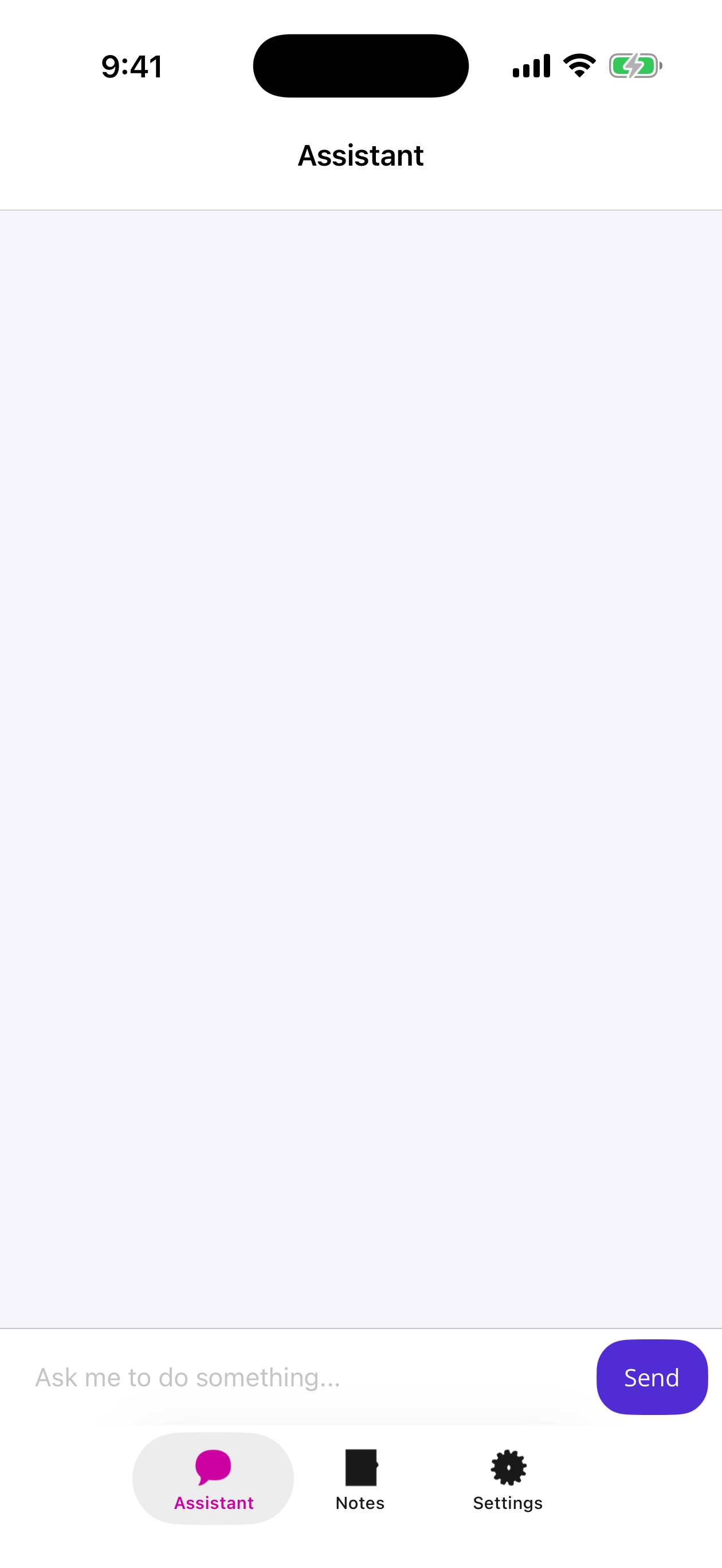
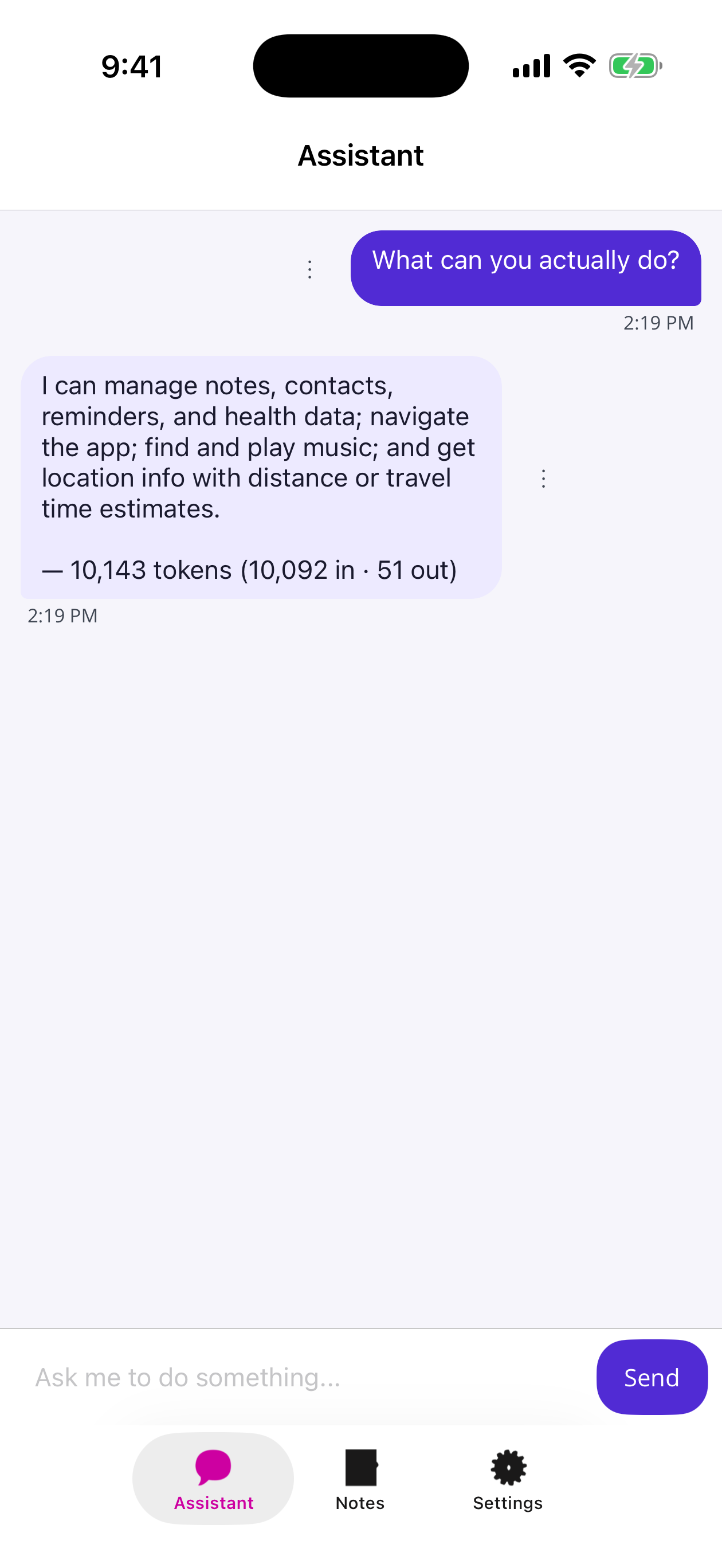
The provider is the only real code, and it’s mechanical: sends go to my own IAssistant, replies come back on an event, and history paging reads out of SQLite. There are two types behind that single Provider property, and the split is the whole design.
The IChatSessionProvider itself is just a factory — ChatView asks it for a session and then talks to that. Ours points every session at the same assistant:
// One shared IAssistant behind every session. That's all this layer does.
public class AiChatSessionProvider(IAssistant assistant) : IChatSessionProvider
{
    public const string DefaultSessionId = "ai";

    public Task<IChatSession> CreateSessionAsync(string[] userIds, CancellationToken ct = default)
        => Task.FromResult<IChatSession>(new AiChatSession(assistant));

    public Task<IChatSession> GetSessionAsync(string sessionId, CancellationToken ct = default)
        => Task.FromResult<IChatSession>(new AiChatSession(assistant));
}
All the real work lives in the IChatSession, and it’s long only because the interface is complete — a full chat backend supports editing, reactions, typing indicators, multiple participants. An AI chat needs almost none of that, so most of the class is politely saying “not applicable”. First, identity and history paging:
sealed class AiChatSession : IChatSession
{
    const string MeId = "me";
    const string AiId = "ai";

    readonly IAssistant assistant;
    readonly ChatSessionUserInfo[] users;
    readonly DateTimeOffset createdAt = DateTimeOffset.Now;

    // message id -> timestamp, so cursor-based paging can resolve an "older than" bound
    readonly ConcurrentDictionary<string, DateTimeOffset> timestamps = new(StringComparer.Ordinal);

    public AiChatSession(IAssistant assistant)
    {
        this.assistant = assistant;
        this.users =
        [
            new ChatSessionUserInfo(MeId, "Me", null, null, this.createdAt),
            new ChatSessionUserInfo(
                AiId, "Assistant",
                new FontImageSource { Glyph = "\U0001F916", FontFamily = "OpenSansRegular", Size = 24, Color = Colors.White },
                null,   // no per-user bubble colour - let the ChatView's OtherBubbleColor win
                this.createdAt
            )
        ];
        this.assistant.Replied += this.OnReplied;   // AI replies arrive asynchronously, not as a return value
    }

    public string CurrentUserId => MeId;

    // Describes the session to the control: who's in it, and what it's allowed to do.
    public ChatSessionInfo Info => new(
        SessionId: AiChatSessionProvider.DefaultSessionId,
        SessionName: "Assistant",
        Users: this.users,
        PermittedEmojis: [],                             // an AI chat has no reactions
        BodyPermissions: MessageBodyPermissions.None,    // plain text in; markdown still renders on the way out
        Permissions: ChatSessionPermissions.CanSendMessages,
        CreatedAt: this.createdAt,
        LastReadDate: DateTimeOffset.Now,
        UnreadMessageCount: 0
    );

    // The only event we ever raise. The rest of the interface is intentionally silent.
    public event EventHandler<ChatMessage>? MessageReceived;
#pragma warning disable CS0067
    public event EventHandler<MessageChanged>? MessageUpdated;
    public event EventHandler<string>? MessageDeleted;
    public event EventHandler<UserTypingEvent>? UserTyping;
    public event EventHandler<ChatSessionUserInfo>? UserJoined;
    public event EventHandler<ChatSessionUserInfo>? UserLeft;
    public event EventHandler<ChatSessionInfo>? SessionUpdated;
    public event EventHandler<ChatConnectionState>? ConnectionStateChanged;
#pragma warning restore CS0067

    // "Pull to load older" calls this. We only ever page backwards, out of SQLite.
    public async Task<MessagePage> GetMessagesAsync(
        string? cursorMessageId, MessagePageDirection direction, int count, CancellationToken ct = default)
    {
        if (direction == MessagePageDirection.Newer)
            return new MessagePage([], false);           // nothing newer than "now" to fetch

        DateTimeOffset? before = null;
        if (cursorMessageId is not null && this.timestamps.TryGetValue(cursorMessageId, out var ts))
            before = ts;                                 // resolve the cursor id back to a timestamp

        var history = await this.assistant.GetHistory(before, count, ct).ConfigureAwait(false);
        var mapped = history.Select(this.Map).ToList();
        return new MessagePage(mapped, hasMore: history.Count >= count);
    }
Then the parts that actually move messages — send, receive, and the token footer:
    // ChatView hands us the user's outgoing text. We echo it back as their bubble
    // immediately, and kick the LLM round trip off in the background.
    public Task<ChatMessage> SendMessageAsync(OutgoingMessage message, CancellationToken ct = default)
    {
        message.Attachment?.Content.Dispose();           // we don't advertise images, but we still own the stream

        var sent = this.NewMessage(MeId, message.Body, message.ClientMessageId, MessageStatus.Sent);

        // fire-and-forget: the reply surfaces later via IAssistant.Replied -> OnReplied
        _ = this.SendAsync(message.Body ?? String.Empty);
        return Task.FromResult(sent);
    }

    async Task SendAsync(string text)
    {
        try
        {
            await this.assistant.Send(text).ConfigureAwait(false);
        }
        catch (Exception ex)
        {
            this.RaiseAiMessage("⚠️ " + ex.Message, null);   // surface failures as an AI bubble, don't crash the chat
        }
    }

    // The assistant finished a turn - push its reply into the control as a received message.
    void OnReplied(object? sender, AssistantReply reply) => this.RaiseAiMessage(reply.Text, reply.Usage);

    void RaiseAiMessage(string text, UsageDetails? usage)
    {
        var body = AppendTokenFooter(text, usage?.InputTokenCount, usage?.OutputTokenCount, usage?.TotalTokenCount);
        var msg = this.NewMessage(AiId, body, clientId: null, MessageStatus.Sent);
        this.MessageReceived?.Invoke(this, msg);         // the control marshals this to the UI thread for us
    }

    // Builds a ChatMessage and records its timestamp so paging can find it later.
    ChatMessage NewMessage(string senderId, string? body, string? clientId, MessageStatus status)
    {
        var now = DateTimeOffset.Now;
        var id = Guid.NewGuid().ToString("N");
        this.timestamps[id] = now;
        return new ChatMessage(
            MessageId: id,
            ClientMessageId: String.IsNullOrEmpty(clientId) ? null : clientId,
            SenderId: senderId,
            Body: body,
            ImageUrl: null,
            Status: status,
            StatusReason: null,
            Timestamp: now,
            EditedTimestamp: null,
            Reactions: [],
            ReadReceipts: []
        );
    }

    // Persisted history -> a UI bubble. AI rows get the token footer re-attached.
    ChatMessage Map(ChatEntry entry)
    {
        var id = entry.Id.ToString("N");
        this.timestamps[id] = entry.Timestamp;
        var isAi = entry.Role.Equals("assistant", StringComparison.OrdinalIgnoreCase);

        return new ChatMessage(
            MessageId: id, ClientMessageId: null,
            SenderId: isAi ? AiId : MeId,
            Body: isAi
                ? AppendTokenFooter(entry.Text, entry.InputTokens, entry.OutputTokens, entry.TotalTokens)
                : entry.Text,
            ImageUrl: null, Status: MessageStatus.Read, StatusReason: null,
            Timestamp: entry.Timestamp, EditedTimestamp: null, Reactions: [], ReadReceipts: []
        );
    }

    // "1,204 tokens (980 in · 224 out)" tacked under each AI bubble.
    static string AppendTokenFooter(string body, long? input, long? output, long? total)
    {
        if (total is null && input is null && output is null)
            return body;

        var ci = CultureInfo.InvariantCulture;
        var totalStr = (total ?? ((input ?? 0) + (output ?? 0))).ToString("N0", ci);
        var footer = input.HasValue && output.HasValue
            ? $"{totalStr} tokens ({input.Value.ToString("N0", ci)} in · {output.Value.ToString("N0", ci)} out)"
            : $"{totalStr} tokens";

        return body + "\n\n— " + footer;
    }
And finally the honest part: everything a chat can do that an AI conversation simply doesn’t. Permissions in Info already gate these off in the UI, so they never get called — they exist only to satisfy the interface:
    // ---- not applicable to an AI chat ----
    public Task<ChatMessage> ResendMessageAsync(string clientMessageId, CancellationToken ct = default)
        => throw new NotSupportedException();

    public Task EditMessageAsync(string messageId, string body, CancellationToken ct = default) => Task.CompletedTask;
    public Task DeleteMessageAsync(string messageId, CancellationToken ct = default) => Task.CompletedTask;
    public Task ReactToMessageAsync(string messageId, string emoji, bool add, CancellationToken ct = default) => Task.CompletedTask;
    public Task MarkReadAsync(string[] messageIds, CancellationToken ct = default) => Task.CompletedTask;
    public Task ToggleTypingAsync(bool isTyping, CancellationToken ct = default) => Task.CompletedTask;
    public Task InviteUserAsync(string userId, CancellationToken ct = default) => Task.CompletedTask;
    public Task LeaveAsync(CancellationToken ct = default) => Task.CompletedTask;
    public Task RenameAsync(string sessionName, CancellationToken ct = default) => Task.CompletedTask;

    public ValueTask DisposeAsync()
    {
        this.assistant.Replied -= this.OnReplied;        // unsubscribe or the session leaks
        return ValueTask.CompletedTask;
    }
}
I append the token usage to each AI bubble, because when you give a model nine tool packs it is extremely educational to watch the input token count climb.
Getting a model
The model plumbing is the part this post cares about least. I’m using OpenAI here purely because it’s the quickest thing to stand up — Microsoft.Extensions.AI.OpenAI turns an OpenAIClient into an IChatClient and that’s the whole setup. The point of Microsoft.Extensions.AI is that nothing downstream knows or cares where the model came from: swap in Azure OpenAI, Ollama, GitHub Copilot, or a local ONNX model and nothing else in this post changes — everything only ever sees IChatClient.
The actual wiring — including UseFunctionInvocation(), the one line that turns a raw model into an agent — lives in Ai/Assistant.cs, and I walk through it in Part 2. Everything else in this post is just deciding which tools that agent is allowed to call.
Part 2: the engine, and it’s smaller than you think
Two small pieces of infrastructure, and then everything else in this post is just registration.
The tool pack
Every Shiny “Extensions.AI” package hands you a small bundle object — HealthAITools, ContactAITools, MusicAITools, NotificationAITools, LocationAITools, DocumentStoreAITools, AppFunctionAITools — and each one has a Tools property that is just IReadOnlyList<AITool>. So a capability, from the app’s point of view, is a list of tools plus a sentence or two telling the model when to use them:
public interface IAiToolPack
{
    IReadOnlyList<AITool> Tools { get; }
    string? SystemPrompt { get; }
}

public static IServiceCollection AddAiTools<TBundle>(
    this IServiceCollection services,
    Func<TBundle, IReadOnlyList<AITool>> tools,
    string? systemPrompt = null
) where TBundle : notnull
    => services.AddSingleton<IAiToolPack>(sp => new AiToolPack(
        tools(sp.GetRequiredService<TBundle>()),
        systemPrompt
    ));
Tool descriptions tell a model what a tool is; the framing prompt tells it what your app expects. That distinction matters more than it looks, and you’ll see it earning its keep in every module below.
The conversation
And here’s the whole AI engine. Not an excerpt — this is the interesting half of Ai/Assistant.cs:
async Task<IChatClient> GetClient(CancellationToken cancelToken)
{
    if (this.client is not null)
        return this.client;

    var inner = await provider.GetChatClient(cancelToken);

    this.client = inner
        .AsBuilder()
        .UseFunctionInvocation(loggerFactory)   // <- the entire tool-calling loop
        .Build();

    return this.client;
}

public async Task Send(string text, CancellationToken cancelToken = default)
{
    var chat = await this.GetClient(cancelToken);

    // one flattened tool list from every module that registered a pack
    this.options ??= new ChatOptions { Tools = [.. packs.SelectMany(x => x.Tools)] };

    // slot 0 is always the system message; rebuilt each turn so "now" stays current
    this.messages[0] = new ChatMessage(ChatRole.System, this.BuildSystemPrompt());
    this.messages.Add(new ChatMessage(ChatRole.User, text));
    await this.Persist(ChatRole.User.Value, text, null, cancelToken);

    var response = await chat.GetResponseAsync(this.messages, this.options, cancelToken);
    this.messages.AddRange(response.Messages);

    await this.Persist(ChatRole.Assistant.Value, response.Text, response.Usage, cancelToken);
    this.Replied?.Invoke(this, new AssistantReply(response.Text, response.Usage));
}
UseFunctionInvocation() is the line that earns its keep. Without it you’d write the loop yourself: read the response, spot the FunctionCallContent, find the matching tool, invoke it, append a FunctionResultContent, call the model again, repeat until it stops asking. With it, all of that happens inside that single GetResponseAsync await. The app never sees a tool call — it sees a question go in and an answer come out, and somewhere in the middle your address book got read.
BuildSystemPrompt() is equally boring: the base prompt, then every pack’s SystemPrompt concatenated, then the current local time (models are hopeless at “tomorrow at 3” without it). Rebuilt every turn so a conversation left open overnight doesn’t schedule reminders for yesterday.
History is a plain List<ChatMessage> mirrored into SQLite — which is what makes “pull to load older” in the chat control work across relaunches.
Part 3: hands
Each capability is a small, self-contained block of registration in MauiProgram — the Shiny service, the capability-gated AI tools, and the framing prompt, three or four lines you can read in one glance. Nothing else in the app knows it exists.
Navigating your own app (Shiny.Maui.Shell)
Try it: “Jot down that the boiler is leaking, tag it home” →
NavigateToRoute
This is my favourite one, and it’s the most MAUI thing in the post, so it goes first.
You already decorate your ViewModels for Shell routing. Add descriptions written as user intent instead of page names, and the source generator emits AI tooling for free:
[ShellMap<NoteEditorPage>(
    "note",
    description: "Use when the user wants to write down, capture, draft, or edit a note, memo, thought or journal entry. Any intent to record something for later."
)]
public partial class NoteEditorViewModel(IDocumentStore store, INavigator navigator)
    : ObservableObject, IQueryAttributable
{
    [ShellProperty("A short title summarising the note, inferred from what the user said", required: true)]
    public string Title { get; set; } = String.Empty;

    [ShellProperty("The full body of the note in the user's own words", required: false)]
    public string Body { get; set; } = String.Empty;

    [ShellProperty("A single lowercase tag to file the note under, e.g. work, home, ideas, health. Infer it; default to general.", required: false)]
    public string Tag { get; set; } = "general";
}
Flip ShinyMauiShell_GenerateAiExtensions on in the csproj, and out the other side comes a class called AiMauiShellTools containing a GetRoutes tool, a NavigateToRoute tool, and — the bit I like most — a pre-baked Prompt string. Here’s the actual generated prompt from the sample app:
Available routes:
- Route "note": Use when the user wants to write down, capture, draft, or edit a note, memo,
  thought or journal entry. Any intent to record something for later.
  Parameters:
    - Title (string, required): A short title summarising the note, inferred from what the user said
    - Body (string, optional): The full body of the note in the user's own words
    - Tag (string, optional): A single lowercase tag to file the note under, e.g. work, home,
      ideas, health. Infer it; default to general.
- Route "notes": Use when the user wants to browse, list or review the notes they have saved
  Parameters:
    - Tag (string, optional): Filter the list to a single lowercase tag. Leave empty for all notes.
Nobody wrote that. It’s your [ShellMap] attributes, compiled. Wire it up:
// MauiProgram
.UseShinyShell(shell => shell
    .AddGeneratedMaps()
    .AddAiTools()          // registers AiMauiShellTools
)

// ShellNavigationModule
services.AddSingleton<IAiToolPack>(sp =>
{
    var shell = sp.GetRequiredService<AiMauiShellTools>();
    return new AiToolPack(shell.Tools, $"""
        You can move the user around the app by calling NavigateToRoute. Fill in as many route
        parameters as you can infer from what the user said — the screen opens pre-populated.

        {shell.Prompt}
        """);
});
Now the payoff. Say “jot down that the boiler is leaking, tag it home”, and the model does exactly what the prompt asked — it calls NavigateToRoute with the values it inferred from that one sentence:
{
  "route": "note",
  "Title": "Boiler is leaking",
  "Tag":   "home"
}
It filled the required Title and inferred the Tag; Body is optional (required: false on the [ShellProperty]), and here it left that one blank for me to fill in. Those required flags are the model’s cue for what it must supply versus what it can leave alone.
From here on there is no AI code in sight — it’s pure Shiny.Maui.Shell. And here’s the part worth stopping on: there’s no IQueryAttributable, no ApplyQueryAttributes, no string dictionary to unpack. The generator emits a strongly-typed NavigateToRoute that resolves your ViewModel from DI and sets its properties directly, parsing each argument to the property’s real type on the way in:
// generated inside AiMauiShellTools.NavigateToRoute("note", args)
await navigator.NavigateTo<NoteEditorViewModel>(vm =>
{
    if (args.TryGetValue("Title", out var title)) vm.Title = title;
    if (args.TryGetValue("Body",  out var body))  vm.Body  = body;
    if (args.TryGetValue("Tag",   out var tag))   vm.Tag   = tag;
});
NavigateTo<TViewModel>(configure) news the ViewModel up from DI, runs that delegate on it, and pins that exact instance as the page’s BindingContext — so the properties are already set before the first bind. Strings assign straight across; an enum, Guid, or int parameter is Enum.Parse’d / Guid.Parse’d to its real type inside the same delegate. The ViewModel stays a plain object with plain properties — no query-attribute plumbing to hand-write and keep in sync.
And the form is just a form — plain two-way bindings, not one line aware that a model is driving it:
<Entry  Text="{Binding Title}" Placeholder="What's this about?" />
<Editor Text="{Binding Body}"  Placeholder="Anything you want to remember..." />
<Entry  Text="{Binding Tag}"   Placeholder="work / home / ideas" />

<Button Text="Save"   Command="{Binding SaveCommand}" />
<Button Text="Cancel" Command="{Binding CancelCommand}" />
The model set the title and tag; data binding filled those fields, and the optional body stayed empty for me. The Title Entry reads “Boiler is leaking” because the ViewModel’s Title was already set when the page bound — identical to the user having typed it. That’s the leverage Shiny.Maui.Shell gives you: the assistant is just another caller of navigation you already have, so it fills the form the same way a deep link, a notification tap, or a button would. The user reviews it and taps Save.
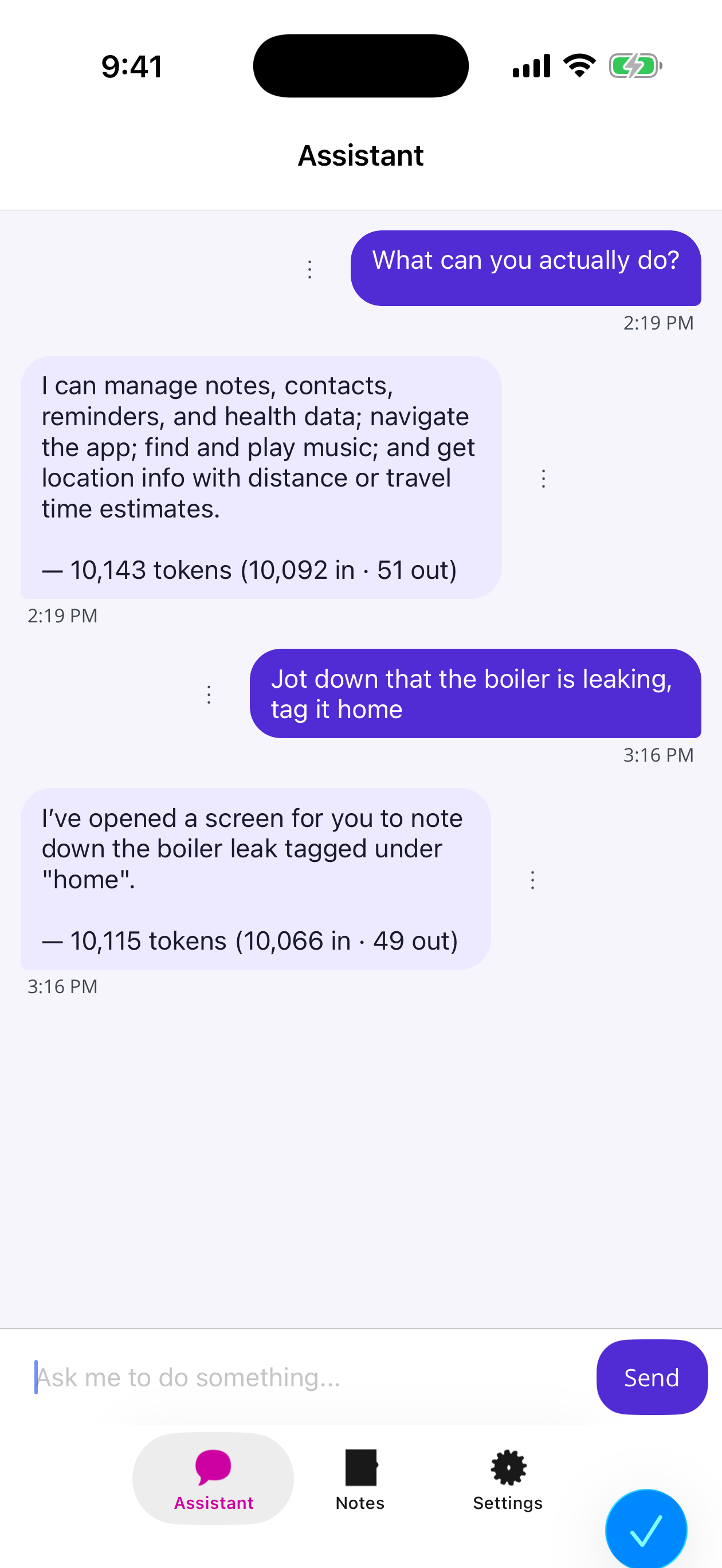
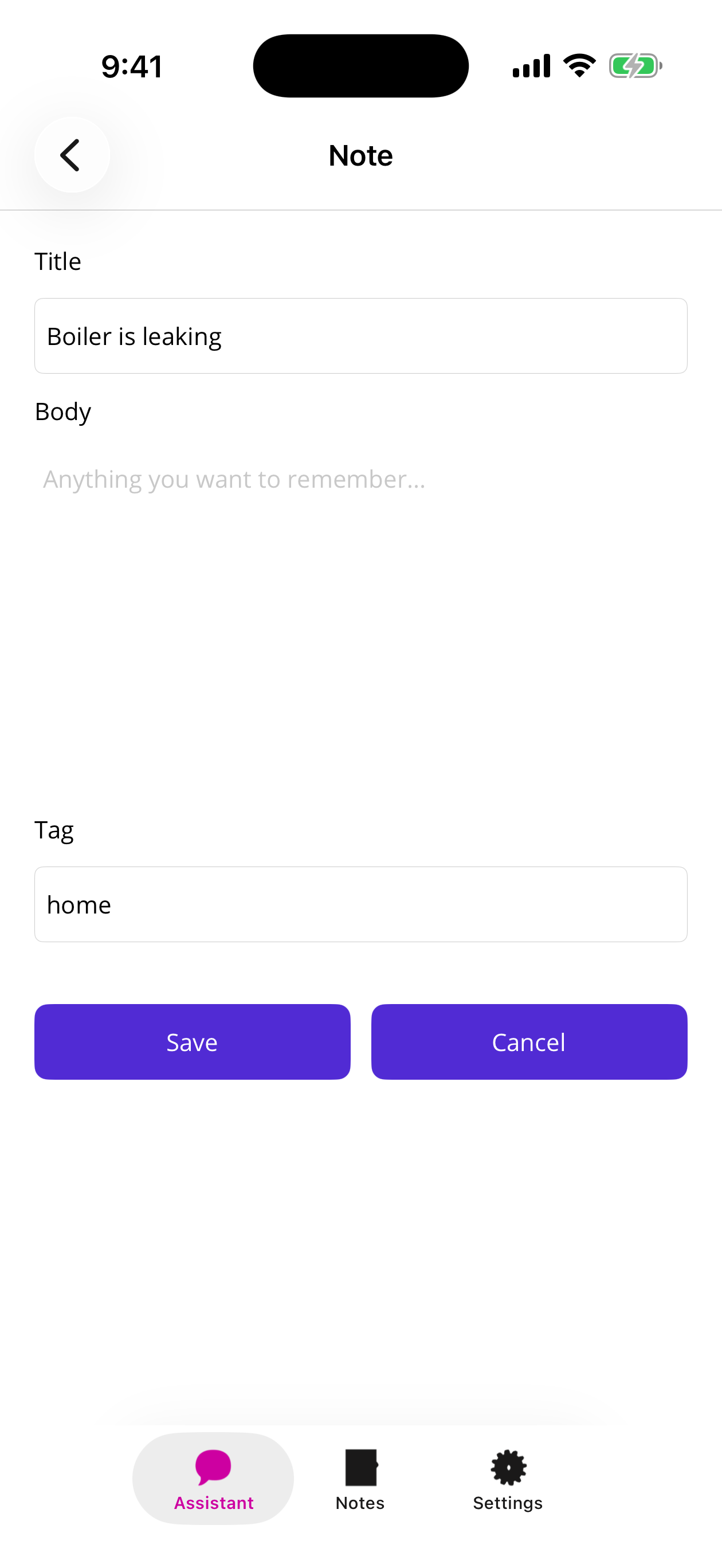
That last sentence is the design, not a limitation. The model navigates and pre-fills; the human commits. Add a described [ShellMap] to any new ViewModel and it’s reachable by voice on the next build — no tool code, no prompt maintenance.
The app’s own data (Shiny.DocumentDb + SQLite)
Try it: “Show me every note I tagged health” →
query· “Delete the boiler note” →delete
Shiny.DocumentDb turns SQLite into a schema-free JSON document store. Its AI layer turns a registered document type into query / count / aggregate / insert / update / delete tools — a typed, capability-gated database rather than “here, model, write some SQL”.
The document type is a plain class. The [Description] attributes aren’t decoration — they’re literally how the model learns what a note is, because they end up in the generated JSON schema:
[Description("A note or journal entry the user has captured in this app")]
public class Note
{
    public Guid Id { get; set; }

    [Description("Short one-line title for the note")]
    public string Title { get; set; } = String.Empty;

    [Description("The body of the note, plain text")]
    public string Body { get; set; } = String.Empty;

    [Description("A single lowercase tag used to group notes, e.g. work, health, ideas, shopping")]
    public string Tag { get; set; } = "general";

    [Description("When the note was created (UTC)")]
    public DateTimeOffset CreatedUtc { get; set; } = DateTimeOffset.UtcNow;
}

[JsonSerializable(typeof(Note))]
[JsonSerializable(typeof(ChatEntry))]      // chat history lives in the same store
public partial class AppJsonContext : JsonSerializerContext;services.AddDocumentStore(opts =>
{
opts.UseReflectionFallback = false; // AOT: fail loudly, don't reflect
opts.JsonSerializerOptions = AppJsonContext.Default.Options;
opts.DatabaseProvider = new SqliteDatabaseProvider("Data Source=" + dbPath);
});
// Types you don't register here simply do not exist as far as the model is concerned
services.AddDocumentStoreAITools(tools => tools
.AddType(
AppJsonContext.Default.Note,
name: "note",
capabilities: DocumentAICapabilities.All, // ReadOnly is the default
configure: b => b
.Description("Notes and journal entries the user has written in this app")
.MaxPageSize(25)
)
);
services.AddAiTools<DocumentStoreAITools>(x => x.Tools, "…framing prompt…");The Notes tab is an ordinary CollectionView over the same IDocumentStore. No sync layer, no separate “AI data”. The model writes; the list reloads on OnAppearing and there it is. That symmetry is worth more than it sounds — it means the AI is a peer of your UI, not a bolt-on.
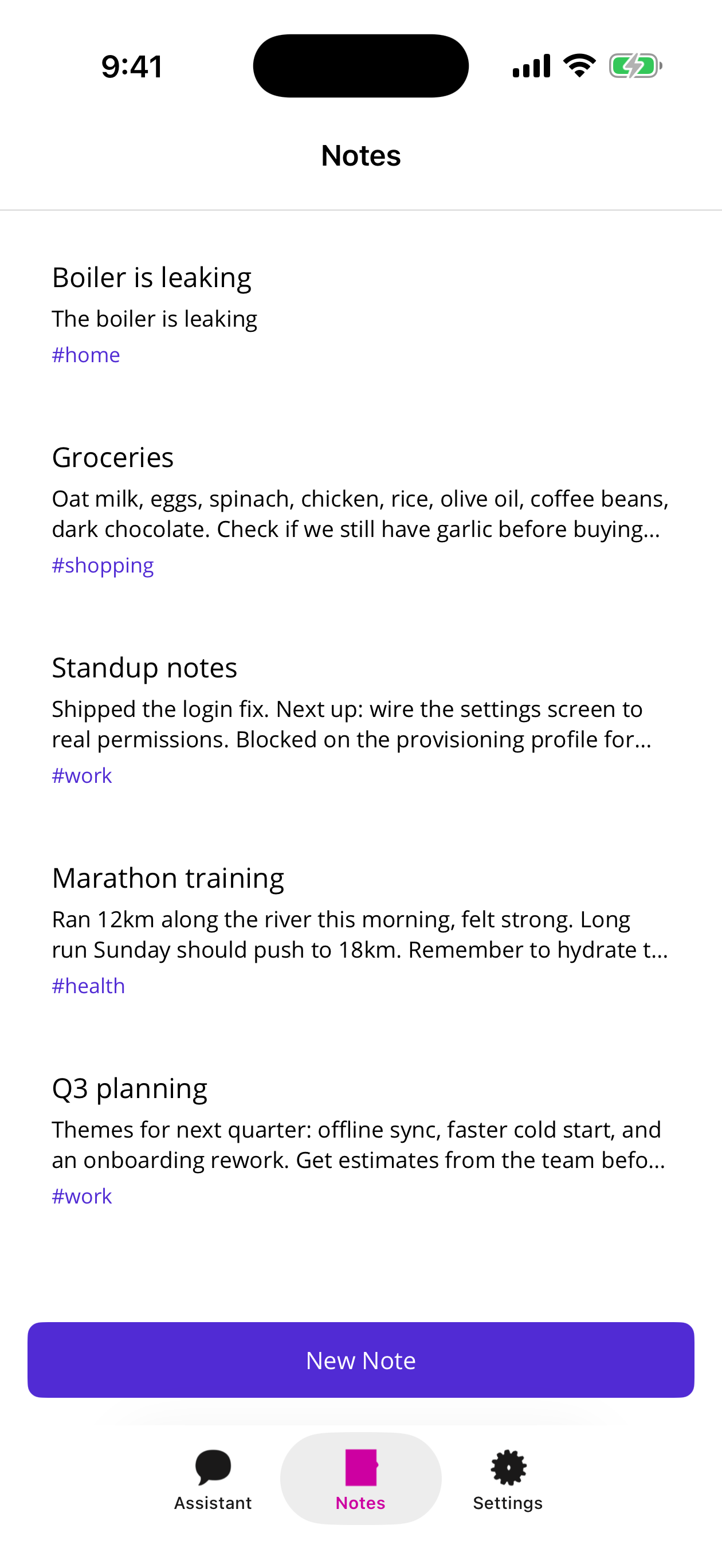
The per-type builder is the interesting bit for real apps: AllowProperties, IgnoreProperties (secrets, big blobs), MaxPageSize, per-property descriptions. Capabilities are flags — ReadOnly, All, or hand-picked Query | Count.
Contacts
Try it: “What’s Jon’s mobile number?” →
search_contactsthenget_contact
services.AddContactStore();
services.AddContactsAITools(tools => tools
    .AddContacts(ContactAICapabilities.ReadWrite)   // Read is the default
);

services.AddAiTools<ContactAITools>(x => x.Tools, """
    You can search and edit the device address book. Always look a contact up by search first and
    act on the returned id — never invent one. Confirm before deleting anyone.
""");search_contacts, get_contact, and — because I opted in — create_contact, update_contact, delete_contact.
Note the framing prompt doing real work there. Two sentences buy you “look it up before you act on it” and “don’t nuke my mother-in-law without asking”.
Reminders
Try it: “Create a reminder for 2pm to call Jon” →
create_reminder
The plumber story, fixed:
services.AddNotifications();
services.AddNotificationAITools(tools => tools
    .AddReminders(ReminderAICapabilities.ReadWrite, channel: "reminders")
);
Underneath it’s local notifications, but the tools are deliberately framed as reminders, because that’s the word humans use: list_reminders, create_reminder (now / at a time / daily), cancel_reminder.
If you pass a channel, register it first. In the sample that’s a three-line IMauiInitializeService:
sealed class ReminderChannelInstaller : IMauiInitializeService
{
    public void Initialize(IServiceProvider services)
        => services.GetRequiredService<INotificationManager>().AddChannel(new Channel
        {
            Identifier = "reminders",
            Description = "Reminders created by the assistant",
            Importance = ChannelImportance.High
        });
}
Calendar
Try it: “Am I free Thursday afternoon?” →
search_events· “Book lunch with Jon Friday at noon” →create_event
Reminders and calendar events feel like the same thing right up until you ship. A reminder is a local notification that pokes you; a calendar event is a shared, syncing record other people can see. Different package, different allow-list.
Shiny.Calendar is device calendar access — calendars, events, attendees, recurrence — and Shiny.Calendar.Extensions.AI turns it into tools with the same per-operation opt-in as everything else:
services.AddCalendarStore();

services.AddCalendarAITools(tools => tools
    .AddCalendar(CalendarAICapabilities.Read | CalendarAICapabilities.Create)
);

services.AddAiTools<CalendarAITools>(x => x.Tools, """
    You can read the user's calendar and book new events. Search before you book so you can warn
    about conflicts, and always state the calendar and the local time you used. Never move or
    cancel an existing event.
    """);
CalendarAICapabilities is a [Flags] enum — Read, Create, Update, Delete, plus Write and All — and each flag maps to a distinct set of tools:
| Flag | Tools |
|---|---|
Read |
list_calendars, search_events, get_event |
Create |
create_event |
Update |
update_event |
Delete |
delete_event |
I stopped at Read | Create on purpose, and that line is the whole argument of this post in miniature. The model can tell me I’m free on Thursday and put lunch in the book, but update_event and delete_event were never compiled into the tool list, so there is no prompt-injected sentence, no hallucination, and no clever jailbreak that deletes my kid’s birthday. It can’t call what it was never handed.
search_events takes an ISO-8601 window (defaulting to a month back and three months ahead), an optional calendarId from list_calendars, and a free-text query matched against title, location and description. Which is exactly why the system prompt injects the current local time every turn — “Thursday afternoon” is meaningless to a model that thinks it’s still training day.
Location
Try it: “How long would it take me to drive to the airport?” →
estimate_travel_time
GPS is read-only by design, so there’s no builder and no capability flags at all:
services.AddGps();
services.AddLocationAITool();
Three tools: get_current_location, get_distance_to, estimate_travel_time. They read the last cached fix and compute great-circle distance with an assumed average speed — so the tool results include a note field saying exactly that, and my framing prompt makes the model caveat its answers. An LLM confidently reporting a 12-minute ETA through a river is a bad look.
Health
Try it: “How did I sleep last week?” → read metric · “Log that I drank 500ml of water” → write hydration
services.AddHealthIntegration();

services.AddHealthAITools(tools => tools
    .AddAllMetrics()                                             // read every numeric metric
    .AddMetric(DataType.Weight, HealthAICapabilities.ReadWrite)
    .AddMetric(DataType.Hydration, HealthAICapabilities.ReadWrite)
    .AddWorkouts(HealthAICapabilities.ReadWrite)
    .AddNutrition()
    .AddBloodPressure()
);
Look at the shape of that opt-in: reads are broad, writes are three specific things. The model can answer “how did I sleep last week” against every metric HealthKit and Health Connect expose, but the only things it can write into your medical record are weight, hydration and workouts. That asymmetry is the entire value of an allow-list API.
One design note worth stealing: this package exposes parameterized tools — one read tool covering all numeric metrics via an enum argument — rather than one tool per metric. Forty tools in the list wrecks tool-selection accuracy. One tool with a good enum doesn’t.
Music
Try it: “Play something upbeat” → library search then
play_track· “Play the famous guitar solo from November Rain” →analyze_song_structurethenplay_trackwithstart_seconds
services.AddShinyMusic();

services.AddMusicAITools(tools =>
{
    tools.AddLibrary()             // search / browse / genres / playlists / lyrics / song structure
         .AddPlayback()            // play (optionally from a timestamp), pause, resume, stop, seek, now-playing
         .AddPlaylistManagement();

#if IOS
    tools.AddCatalog();            // Apple Music catalog search - Apple platforms only
#endif
});
Same shape as everything else: areas are additive, and an empty registration throws rather than quietly handing the model nothing.
| Area | Tools |
|---|---|
AddLibrary() |
search_tracks, browse_tracks, list_music_categories, list_playlists, get_playlist_tracks, get_lyrics, analyze_song_structure |
AddPlayback() |
play_track, control_playback, get_now_playing |
AddPlaylistManagement() |
create_playlist, modify_playlist, delete_playlist |
AddCatalog() |
search_catalog |
“Play something upbeat” turns into a library search by genre/era, a pick, and a play_track by id. AddCatalog() is excluded from AddAll() on purpose — it hits the Apple Music streaming catalog, which throws on Android, hence the #if.
The one that surprised me
That was the version I demoed for a while, and it was fine. Then someone asked for “the famous guitar solo from November Rain” and I realised the whole model of “search, then press play at zero” was leaving the best part on the table. Songs have structure, and a model already knows an enormous amount about the songs in your library — it just has no idea where anything is in the file.
So AddLibrary() now also mints analyze_song_structure, and the trick is that it doesn’t try to be clever. It hands the model two independent readings of the track and lets the model’s own knowledge do the matching:
// "Play the famous guitar solo from November Rain"
var track = (await library.SearchTracksAsync("November Rain")).First();

// 1. Precise instrumental boundaries from time-synced (LRC) lyrics — no audio decode,
//    so this works even on DRM-protected tracks
var lyrics = await lyricsProvider.GetLyricsAsync(track);
var gaps = lyrics.GetInstrumentalGaps(track.Duration);   // intro, mid break, final solo, outro

// 2. Energy sections from an offline PCM scan — tells a loud solo from a quiet intro.
//    Returns null for DRM / streaming-only tracks.
var levels = await library.AnalyzeLevelsAsync(track.Id);
var solo = levels?.Sections
    .Where(s => s.Energy == AudioEnergy.Loud)
    .MaxBy(s => s.Start);                                // the last big loud stretch

var startAt = solo?.Start ?? gaps.LastOrDefault()?.Start ?? TimeSpan.Zero;
The two readings cover each other’s blind spots, and that’s the entire design. Lyric gaps are exact but say nothing about volume — an intro and a solo look identical. Energy sections know loud from quiet but have no idea where the singing stopped, and they go dark entirely on Apple Music DRM, where nothing can decode the audio. Together you get “here are the stretches with no vocals, and here’s how loud each one is.”
What the tool returns is just that, in seconds, plus a nudge:
{
  "trackId": "1583",
  "title": "November Rain",
  "artist": "Guns N' Roses",
  "durationSeconds": 537.4,
  "lyricsSynced": true,
  "instrumentalGaps": [
    { "startSeconds": 0.0,   "endSeconds": 61.2,  "durationSeconds": 61.2 },
    { "startSeconds": 250.8, "endSeconds": 292.4, "durationSeconds": 41.6 },
    { "startSeconds": 447.1, "endSeconds": 537.4, "durationSeconds": 90.3 }
  ],
  "audioAnalyzed": true,
  "audioSections": [
    { "startSeconds": 0.0,   "endSeconds": 61.2,  "energy": "quiet", "averageLevel": 0.21 },
    { "startSeconds": 250.8, "endSeconds": 292.4, "energy": "loud",  "averageLevel": 0.78 },
    { "startSeconds": 447.1, "endSeconds": 537.4, "energy": "loud",  "averageLevel": 0.83 }
  ],
  "hint": "Pick the section matching the request from your knowledge of the song, then call play_track with start_seconds set to its start."
}
Three instrumental stretches. The library can’t tell you which one is “the famous one” — but the model can, because it’s read the internet. It picks the 7:27 outro, and calls:
{ "track_id": "1583", "start_seconds": 447.1 }play_track grew an optional start_seconds for exactly this. No audio is played by the analysis tool — it decodes to PCM offline and throws the samples away, so the model can look before it leaps.
I like this one because of where the intelligence sits. The library does the boring, mechanical, device-side thing it’s actually good at: here are the timestamps where nobody is singing, and here’s how loud it is at each one. The model does the thing it’s good at and the device cannot possibly do: knowing that in that song, the one people mean is the one at the end. Neither half is clever on its own. I didn’t write a single line of “solo detection” heuristics, and I’d have got it wrong if I had.
Two caveats worth knowing before you demo it. audioSections comes back null for DRM-protected tracks — you get the lyric gaps and nothing else, which is why the response reports audioAnalyzed honestly instead of pretending. And instrumentalGaps needs time-synced lyrics; plain-text lyrics give you nothing, so lyricsSynced tells the model which kind it got. Both fields exist so the model can hedge its answer instead of inventing a timestamp.
Your own services
Try it: “What can you actually do?” →
GetEnabledModules
Last one, and it’s the one that generalises to your app. Mark an interface [Tool], describe the methods, and Shiny.Extensions.DependencyInjection’s source generator emits a real AIFunction subclass per method — hand-built JSON schema, JsonElement accessors, no reflection, AOT clean.
[Tool]
[Description("Facts about this app itself")]
public interface IAppInfoService
{
    [Description("Lists which Shiny AI capability modules were compiled into this build of the app. Use this when the user asks what you can do.")]
    Task<string> GetEnabledModules();

    [Description("Gets the app name, version, and the device platform it is currently running on")]
    Task<string> GetAppEnvironment();
}

[Singleton]
public class AppInfoService : IAppInfoService { /* … */ }builder.Services.AddGeneratedServices();
builder.Services.AddGeneratedAITools();These land in DI as plain AITool, so they get wrapped into a pack the same way as everything else:
builder.Services.AddAiTools(
    sp => [.. sp.GetServices<AITool>()],
    "You can answer questions about this app itself using the app-info tools."
);
Ask the assistant “what can you actually do?” and it calls a tool to find out. Which is a bit meta, and also genuinely the most useful thing in a demo app.
Part 4: the wiring
Here is the shape of MauiProgram — every capability from Part 3 registered inline, in the one method. There’s no module indirection to chase; you read the whole assistant top to bottom:
public static MauiApp CreateMauiApp()
{
    var builder = MauiApp.CreateBuilder();

    builder
        .UseMauiApp<App>()
        .UseShiny()                     // platform lifecycle + permissions
        .UseShinyControls()             // ChatView and friends
        .UseShinyShell(shell => shell
            .AddGeneratedMaps()         // [ShellMap] routes -> Shell routing + DI
            .AddAiTools()               // generated AiMauiShellTools -> DI
        )
        .ConfigureFonts(/* OpenSans */);

    var services = builder.Services;

    // Shell navigation, notes, contacts, reminders, calendar, location, music — each is the same
    // services.Add…() + services.Add…AITools(…) + AddAiTools<…>(…) trio from Part 3.
    services.AddSingleton<IAiToolPack>(sp => /* shell navigation pack */);

    services.AddDocumentStore(/* … */);
    services.AddDocumentStoreAITools(/* … */);
    services.AddAiTools<DocumentStoreAITools>(x => x.Tools, "…notes…");

    services.AddContactStore();
    services.AddContactsAITools(/* … */);
    services.AddAiTools<ContactAITools>(x => x.Tools, "…contacts…");

    services.AddNotifications();
    services.AddNotificationAITools(/* … */);
    services.AddAiTools<NotificationAITools>(x => x.Tools, "…reminders…");

    services.AddCalendarStore();
    services.AddCalendarAITools(/* … */);
    services.AddAiTools<CalendarAITools>(x => x.Tools, "…calendar…");

    services.AddGps();
    services.AddLocationAITool();
    services.AddAiTools<LocationAITools>(x => x.Tools, "…location…");

    services.AddShinyMusic();
    services.AddMusicAITools(/* … */);
    services.AddAiTools<MusicAITools>(x => x.Tools, "…music…");

#if ENABLE_APPLE_HEALTH
    services.AddHealthIntegration();
    services.AddHealthAITools(/* … */);
    services.AddAiTools<HealthAITools>(x => x.Tools, "…health…");
#endif

    // [Singleton] classes + [Tool] interfaces compiled into AIFunctions
    services.AddGeneratedServices();
    services.AddGeneratedAITools();
    services.AddAiTools(
        sp => [.. sp.GetServices<AITool>()],
        "You can answer questions about this app itself using the app-info tools."
    );

    services.TryAddSingleton(TimeProvider.System);

#if DEBUG
    builder.Logging.AddDebug();
#endif
    return builder.Build();
}
No separate AI registration — Assistant and OpenAIChatClientProvider are [Singleton] classes, so AddGeneratedServices() wires them up.
Notice the only #if in that whole list: Health. Every other capability is just always on — a line you delete if you don’t want it. Health is the exception, because it’s the one that drags an entitlement along with it.
The bit everybody forgets
Registering AI tools is not an OS permission prompt.
It’s an allow-list you control on behalf of the agent. Completely different mechanism, completely different consent. Every one of these packages says the same thing in its docs and it’s still the number one thing people get wrong: the tools assume permission is already granted, because a permission prompt needs a foreground activity, and a tool call happens on a background thread halfway through a chat turn.
So ask up front, from a real screen. The Settings tab has a “Grant permissions” button that does exactly this:
results.Add($"Contacts:  {await contactStore.RequestAccess()}");
results.Add($"Reminders: {await notificationManager.RequestAccess()}");
results.Add($"Calendar:  {await calendarStore.RequestAccess(CalendarAccessType.ReadWrite)}");
results.Add($"Location:  {await gps.RequestAccess(GpsRequest.Foreground)}");
results.Add($"Music:     {await mediaLibrary.RequestPermissionAsync()}");

var granted = await health.RequestPermissions(
    new (PermissionType Permission, DataType Type)[]
    {
        (PermissionType.Read,      DataType.StepCount),
        (PermissionType.Read,      DataType.HeartRate),
        (PermissionType.Read,      DataType.SleepDuration),
        (PermissionType.ReadWrite, DataType.Weight),
        (PermissionType.ReadWrite, DataType.Hydration),
        (PermissionType.ReadWrite, DataType.Workout)
    }
);
Do it once, on a screen the user understands, before they ever ask the assistant for anything.
What it feels like
Things that work on device, in a chat bubble, with no per-feature glue code:
- “Jot down that the boiler is leaking, tag it home” → note editor opens, pre-filled
- “What notes do I have tagged work?” → queried out of SQLite
- “Remind me to call the plumber at 3pm” → a real, scheduled local notification
- “What’s Jane’s mobile?” → address book search
- “Am I free Thursday afternoon? Book lunch with Jon if I am” → calendar search, then a real event
- “How many steps did I do yesterday?” → HealthKit / Health Connect
- “Where am I, and how far is that to the CN Tower?” → GPS + distance, caveated as straight-line
- “Play something upbeat” → library search, then playback
- “Play the famous guitar solo from November Rain” → song-structure analysis, then playback starting at 7:27
- “What can you actually do?” → it calls a tool and reads you the module list
Not one of those needed a hand-written AIFunction. The total amount of AI-specific infrastructure in the app is an IAiToolPack interface, one Assistant class whose interesting part fits on a screen, and a chat session bridge.
Packages & docs
Everything used in the sample.
The brain
| Package | Docs |
|---|---|
Microsoft.Extensions.AI |
Microsoft Learn |
Microsoft.Extensions.AI.OpenAI |
Microsoft Learn |
If you’d rather not hand-roll persisted history and the wake-word/voice loop, Shiny.AiConversation packages all of it — see the docs. I wrote it out longhand here because the point of the post is that none of it is magic.
The UI
| Package | Docs |
|---|---|
Shiny.Maui.Controls |
ChatView |
Shiny.Maui.Shell |
Shell · AI navigation |
Shiny.Hosting.Maui |
MAUI hosting |
The hands
| Package | Docs |
|---|---|
Shiny.Contacts + Shiny.Contacts.Extensions.AI |
Contact store · AI tools |
Shiny.Notifications + Shiny.Notifications.Extensions.AI |
Notifications · AI tools |
Shiny.Calendar + Shiny.Calendar.Extensions.AI |
Calendar store · AI tools |
Shiny.Locations + Shiny.Locations.Extensions.AI |
Locations · AI tools |
Shiny.Health + Shiny.Health.Extensions.AI |
Health · AI tools |
Shiny.Music + Shiny.Music.Extensions.AI |
Music · AI tools |
Shiny.DocumentDb.Sqlite + Shiny.DocumentDb.Extensions.AI |
DocumentDb · AI tools |
Shiny.Extensions.DependencyInjection |
DI · AI tools |
Shiny.AppFunctions + Shiny.AppFunctions.Extensions.AI |
App Functions · AI tools — the functions Siri and Gemini call, as tools for your own model |
A word on cost
Every tool you register ships its name, description, and full JSON schema to the model on every single turn — that’s what lets it decide what to call. Hand it nine capability packs and that’s dozens of tool definitions padding the front of every request, before the user has typed a word. The token footer under each bubble in this sample isn’t decoration; it’s there so you can watch the input count climb as you switch modules on.
More tools means a bigger context window, which means more tokens per turn, which means real money — and, past a point, worse tool-selection accuracy as the model wades through choices it never needed. So don’t reach for the whole toolbox because you can. Pick the capabilities the app actually needs, switch the rest off from the csproj, and let the libraries absorb the tedious part — the schemas, the DI wiring, the permission plumbing, the AOT-clean function generation. That’s the whole trade this post is making: you own the decision of which tools; the libraries own the work of wiring them up.
The takeaway
The chat control is the least interesting part of an AI feature. It took twenty-five lines of XAML and I’d argue you should spend about that much thought on it.
The interesting part is the list of things you decided the model may do — and every one of those decisions is a services.Add…AITools(builder => …) call you can read in one sitting, review in a PR, and switch off from the csproj. Read-only by default. Opt-in by name. AOT-clean, because every one of these packs hand-writes its schemas instead of reflecting over your types at runtime.
Give the thing hands. Just decide, deliberately, which ones.
Now go read the rest of MAUI UI July.