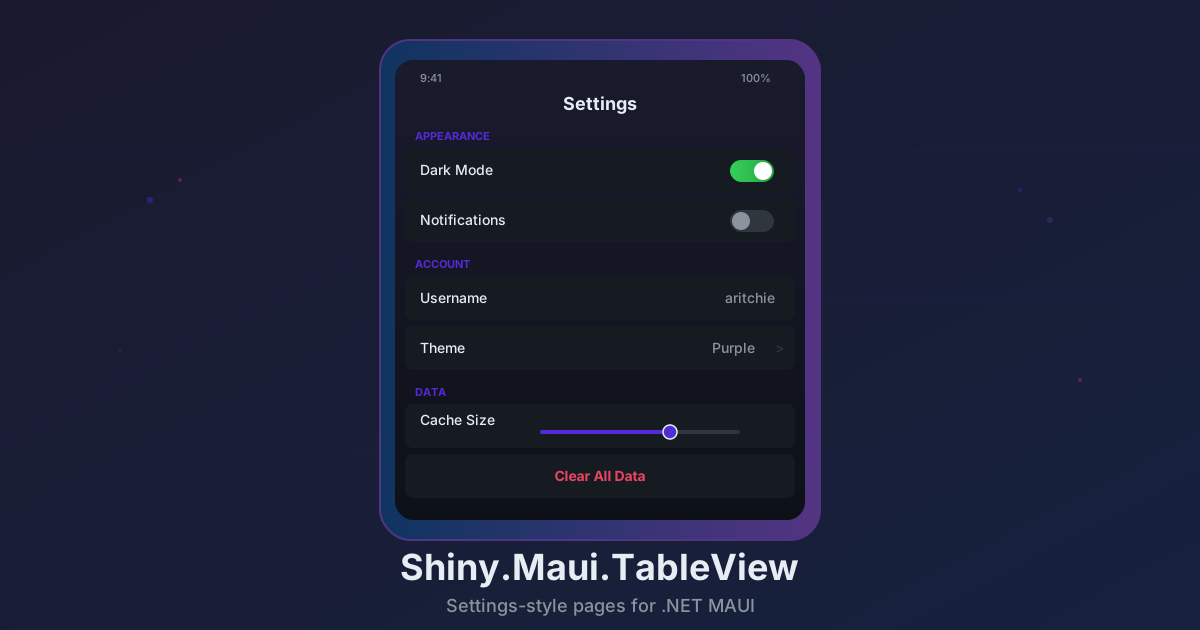
Introducing Shiny.Maui.TableView — Settings-Style Pages for .NET MAUI, Without the Platform Pain
If you’ve built a .NET MAUI app, you’ve probably needed a settings page. A scrollable list of sections with toggles, text entries, pickers, radio buttons — the kind of UI you see in every iOS Settings screen or Android preferences panel. And if you’ve tried to build one, you know it’s surprisingly painful.
MAUI’s built-in TableView is limited. The community options either depend on native renderers that break across platform updates or haven’t kept up with modern .NET. I wanted something that just worked — pure MAUI, no platform-specific code, full MVVM support, and enough cell types to cover real app scenarios without writing custom templates for everything.
So I built Shiny.Maui.TableView.
What Is It?
It’s a settings-style TableView control built entirely on .NET MAUI layout primitives. No custom handlers, no native renderers, no platform-specific code. It ships with 15 cell types that cover the most common settings UI patterns, a three-level cascading style system, drag-and-drop reordering, dynamic section generation, and full MVVM data binding.
xmlns:tv="http://shiny.net/maui/tableview"<tv:TableView CellAccentColor="#007AFF">
<tv:TableRoot>
<tv:TableSection Title="Network">
<tv:SwitchCell Title="Wi-Fi"
On="{Binding WifiEnabled, Mode=TwoWay}" />
<tv:SwitchCell Title="Bluetooth"
On="{Binding BluetoothEnabled, Mode=TwoWay}" />
</tv:TableSection>
</tv:TableRoot>
</tv:TableView>That’s a fully functional settings section with two-way bound toggles. No custom renderers, no platform init code beyond one line in MauiProgram.cs.
Why Pure MAUI?
The existing community solution — AiForms.Maui.SettingsView — is excellent, but it uses native platform renderers (UITableView on iOS, RecyclerView on Android). That means platform-specific bugs, maintenance burden across OS updates, and behavior differences between platforms.
Shiny.Maui.TableView takes a different approach: everything is built from ContentView, ScrollView, VerticalStackLayout, Grid, and Border. One codebase, identical behavior everywhere. It runs on iOS, Android, and Mac Catalyst with zero platform-specific code.
The tradeoff is no virtualization — this is a full-render model. For settings pages with dozens of items, that’s perfectly fine. This isn’t meant for scrolling through thousands of rows; it’s meant for building the kind of structured, section-based UI that settings and forms demand.
15 Cell Types
The library ships with cell types that cover the breadth of settings UI patterns:
Display & Navigation
- LabelCell — Read-only title/value display
- CommandCell — Tappable cell with optional disclosure arrow and command binding
- ButtonCell — Full-width button-style action cell
Toggles & Selection
- SwitchCell — Toggle with customizable accent color
- CheckboxCell — Native checkbox with accent color
- SimpleCheckCell — Lightweight checkmark for selection lists
- RadioCell — Radio selection within a section or across the entire TableView
Text Input
- EntryCell — Inline text entry with placeholder, keyboard type, password masking, and max length
Pickers
- DatePickerCell — Native date picker dialog
- TimePickerCell — Native time picker dialog
- TextPickerCell — Dropdown-style picker from a list of items
- NumberPickerCell — Numeric input via dialog with min/max/unit
- PickerCell — Full-page selection with single or multi-select, auto-generated display text, and configurable pick-to-close behavior
Custom
- CustomCell — Host any MAUI View with optional full-width mode, command binding, and disclosure arrow
Every cell shares a common base with title, description, hint text, icon, background color, selection highlight, and border customization.
Cascading Styles
One of the features I’m most happy with is the three-level cascading style system. Set defaults at the TableView level, override at the section level, and fine-tune on individual cells.
Level 1 — TableView (global defaults):
<tv:TableView
    CellTitleColor="#333333"
    CellTitleFontSize="17"
    CellDescriptionColor="#888888"
    CellValueTextColor="#007AFF"
    CellBackgroundColor="White"
    CellAccentColor="#007AFF"
    HeaderTextColor="#666666"
    SeparatorColor="#C6C6C8">
This sets the look for every cell and header in the entire TableView.
Level 2 — TableSection (section overrides):
<tv:TableSection Title="Important"
                 HeaderBackgroundColor="#E3F2FD"
                 HeaderTextColor="#1565C0">
Level 3 — Individual cell (highest priority):
<tv:LabelCell Title="Warning" TitleColor="Red" />The resolution logic is simple: cell property wins over section property, section wins over TableView, TableView wins over framework defaults. You set your theme once at the top and only override where you need to.
The style system covers everything: title, description, hint text, and value text fonts and colors; icon size and radius; accent color for interactive controls; cell backgrounds and selection highlights; header and footer appearance; separator color, height, and inset; section gap height and color; cell padding and borders.
Dynamic Sections
Static XAML is great for fixed settings pages, but sometimes you need sections or cells generated from data. Both TableView and TableSection support ItemsSource with DataTemplate.
Dynamic cells within a section:
<tv:TableSection Title="Devices"
                 ItemsSource="{Binding Devices}">
    <tv:TableSection.ItemTemplate>
        <DataTemplate>
            <tv:LabelCell Title="{Binding Name}"
                          ValueText="{Binding Status}" />
        </DataTemplate>
    </tv:TableSection.ItemTemplate>
</tv:TableSection>
You can mix static and templated cells in the same section using TemplateStartIndex to control where generated cells appear. The binding supports INotifyCollectionChanged, so adding or removing items from your collection updates the UI automatically.
Drag & Sort
Enable reordering with a single property:
<tv:TableView ItemDroppedCommand="{Binding ReorderCommand}">
    <tv:TableRoot>
        <tv:TableSection Title="Priority" UseDragSort="True">
            <tv:LabelCell Title="High" />
            <tv:LabelCell Title="Medium" />
            <tv:LabelCell Title="Low" />
        </tv:TableSection>
    </tv:TableRoot>
</tv:TableView>
Each cell gets up/down arrow controls. The ItemDroppedCommand receives ItemDroppedEventArgs with the section, cell, and from/to indexes so you can update your backing data.
Radio Groups
Radio selection is handled through an attached property that can scope to a section or the entire TableView:
<tv:TableSection Title="Theme"
                 tv:RadioCell.SelectedValue="{Binding SelectedTheme, Mode=TwoWay}">
    <tv:RadioCell Title="Light" Value="Light" />
    <tv:RadioCell Title="Dark" Value="Dark" />
    <tv:RadioCell Title="System" Value="System" />
</tv:TableSection>
Bind RadioCell.SelectedValue to your ViewModel and you get two-way radio group selection with no code-behind.
Full-Page Picker
The PickerCell navigates to a dedicated selection page — useful for long lists or multi-select scenarios:
<tv:PickerCell Title="Interests"
               ItemsSource="{Binding AllInterests}"
               SelectedItems="{Binding SelectedInterests, Mode=TwoWay}"
               SelectionMode="Multiple"
               MaxSelectedNumber="5"
               UsePickToClose="True"
               UseAutoValueText="True"
               PageTitle="Select Interests" />
It auto-generates the value text from your selections, supports single and multi-select modes, and can auto-close when the max selection count is reached.
Setup
Install the NuGet package:
dotnet add package Shiny.Maui.TableViewRegister in MauiProgram.cs:
var builder = MauiApp.CreateBuilder();
builder
    .UseMauiApp<App>()
    .UseShinyTableView();
Add the XAML namespace and start building:
<ContentPage xmlns:tv="http://shiny.net/maui/tableview">
    <tv:TableView>
        <tv:TableRoot>
            <tv:TableSection Title="General">
                <tv:SwitchCell Title="Notifications"
                               On="{Binding NotificationsEnabled, Mode=TwoWay}" />
                <tv:EntryCell Title="Name"
                              ValueText="{Binding UserName, Mode=TwoWay}"
                              Placeholder="Enter your name" />
                <tv:CommandCell Title="About"
                                Command="{Binding AboutCommand}"
                                ShowArrow="True" />
            </tv:TableSection>
        </tv:TableRoot>
    </tv:TableView>
</ContentPage>
When to Use It
Good fit:
- Settings and preferences pages
- Form-style data entry screens
- Profile editing UIs
- Any structured, section-based list with mixed control types
- Apps targeting iOS, Android, and Mac Catalyst from a single codebase
Not the best fit:
- Long scrolling lists with hundreds or thousands of items (no virtualization)
- Data grids or spreadsheet-style layouts
- Chat interfaces or feed-style UIs
Get Started
dotnet add package Shiny.Maui.TableViewFull documentation at shinylib.net/tableview and the GitHub repository has the complete source, sample app, and issue tracker.
comments powered by Disqus